Compare wiki pages and versions side by side, and see what changed
· Sergii Kravtsov · Folio
Wiki work is full of comparisons. The English text and its translation. This quarter's plan and last quarter's. A spec and the draft that is meant to follow it. And the question every editor asks on a Monday: what changed since last week? In most wikis the answer is two browser tabs and a lot of squinting. Folio now has a compare view: up to five pages, or older versions of a page, side by side in one window.
Compare is available in Folio 0.4.1. Below is how it works, step by step, and where it stops. The pictures come from a local test instance with a made-up rollout plan.
Collect pages, from any space
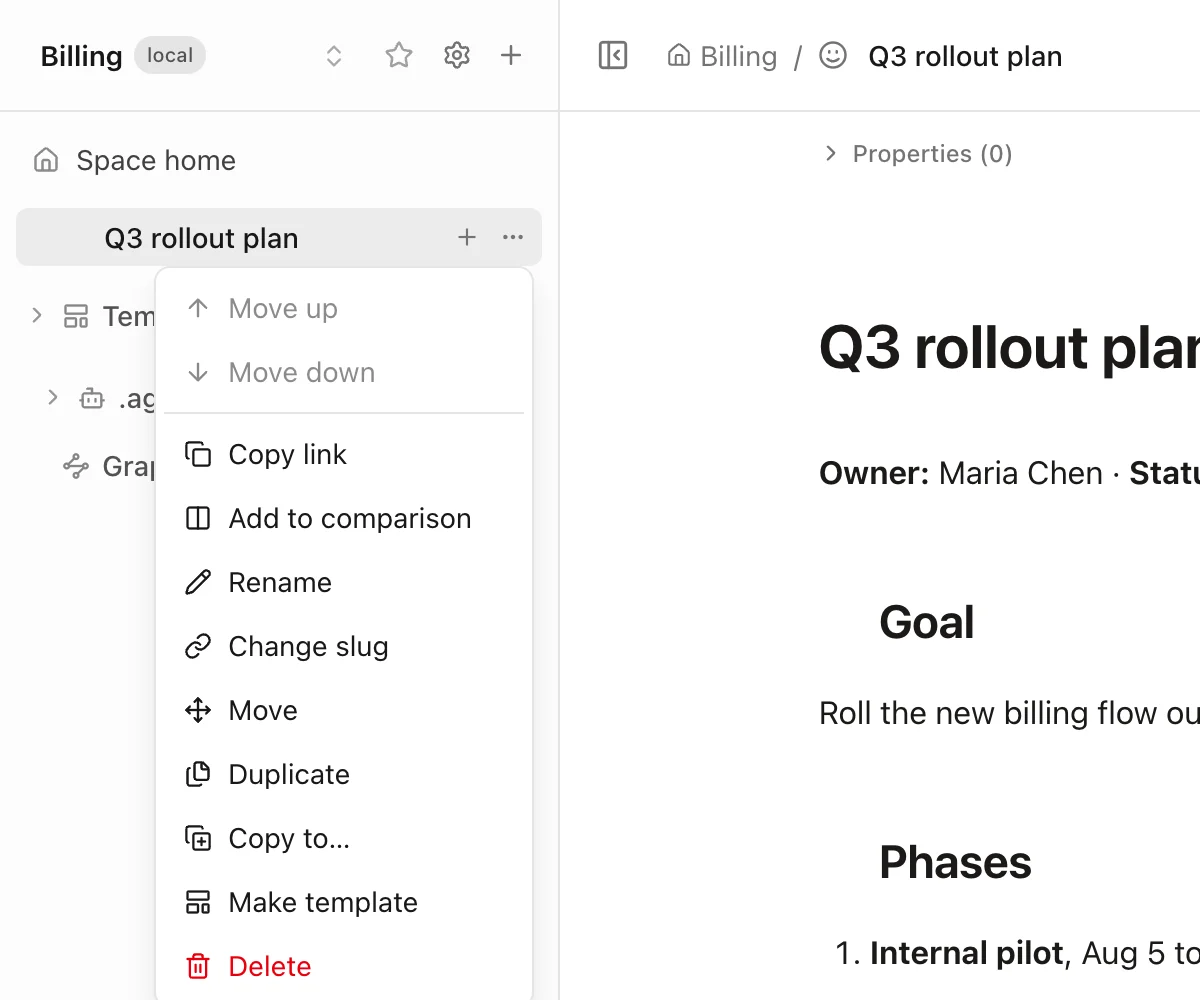
Right-click a page in the sidebar, or open its ... menu, and choose Add to comparison. A button in the page header does the same for the page you have open, and people who can only read a space get the item in their shorter menu too.
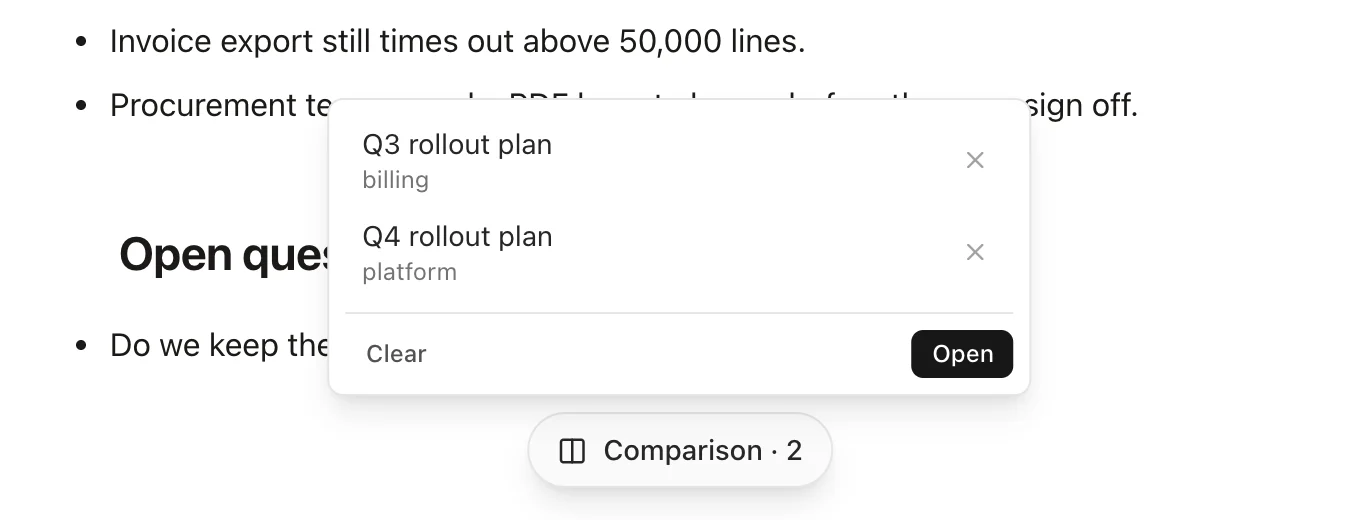
A chip labeled Comparison appears at the bottom of the window with the number of items. Click it to see the list: remove an item with the cross, press Clear to start over, and press Open once there are at least two. The list holds up to five items and can mix pages from different spaces, such as a plan from the Billing space and one from the Platform space.
Side by side, and still live
Open shows the pages as equal columns. A column of a current page is not a snapshot: it is the page itself, with the same editor and the same live collaboration. Switch a column to Live edit and type, and anyone else who has that page open sees the change as it happens, exactly as if you had opened it on its own. Each column has a bar with the title, the space, a link that opens the page alone and a cross that removes the column.
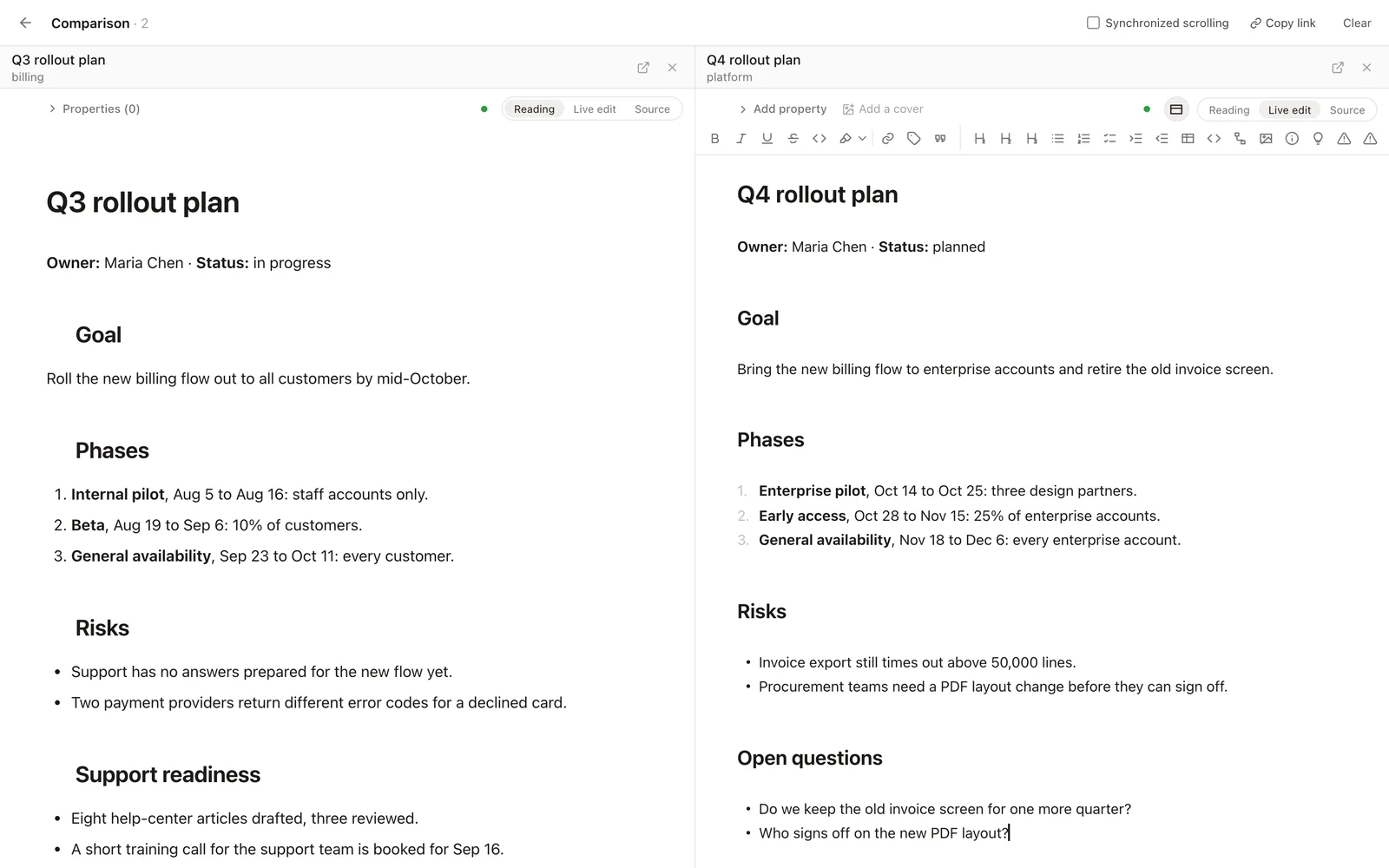
The bar at the top has a Synchronized scrolling switch, so a long page and its counterpart move together, a Copy link button and Clear. On a phone the columns scroll sideways, one at a time.
Compare a version with the page
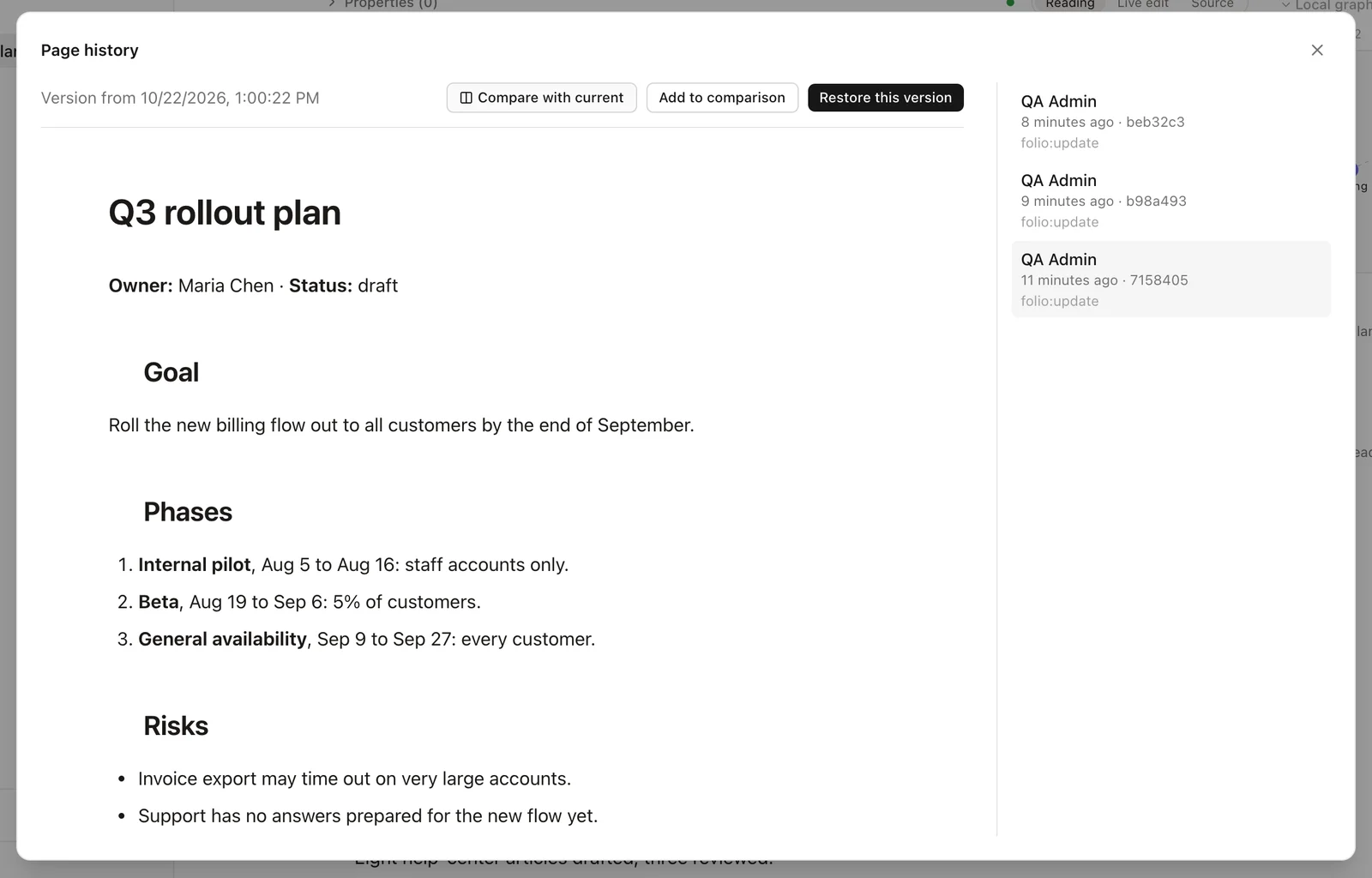
Pages in Folio are files in Git, so every page has a history. Open it, pick a version and you now have two new buttons next to Restore. Compare with current opens the page as it is today, as a live column, with that version beside it, read-only. Add to comparison sets the version aside, so you can collect several versions, or versions of several pages, and open them together.
In the compare view the leftmost column is the base. With Highlight changes on, every version column is marked against it. A green bar marks blocks of text that differ from the base. A red struck-through fragment marks text the base has and the version lacks, shown where it used to be, as Markdown source. A line above the column counts the changed blocks and the removed fragments, or says there are no differences. Put the current page first and you see what changed since an older version; put an older version first and the marks read the other way round.
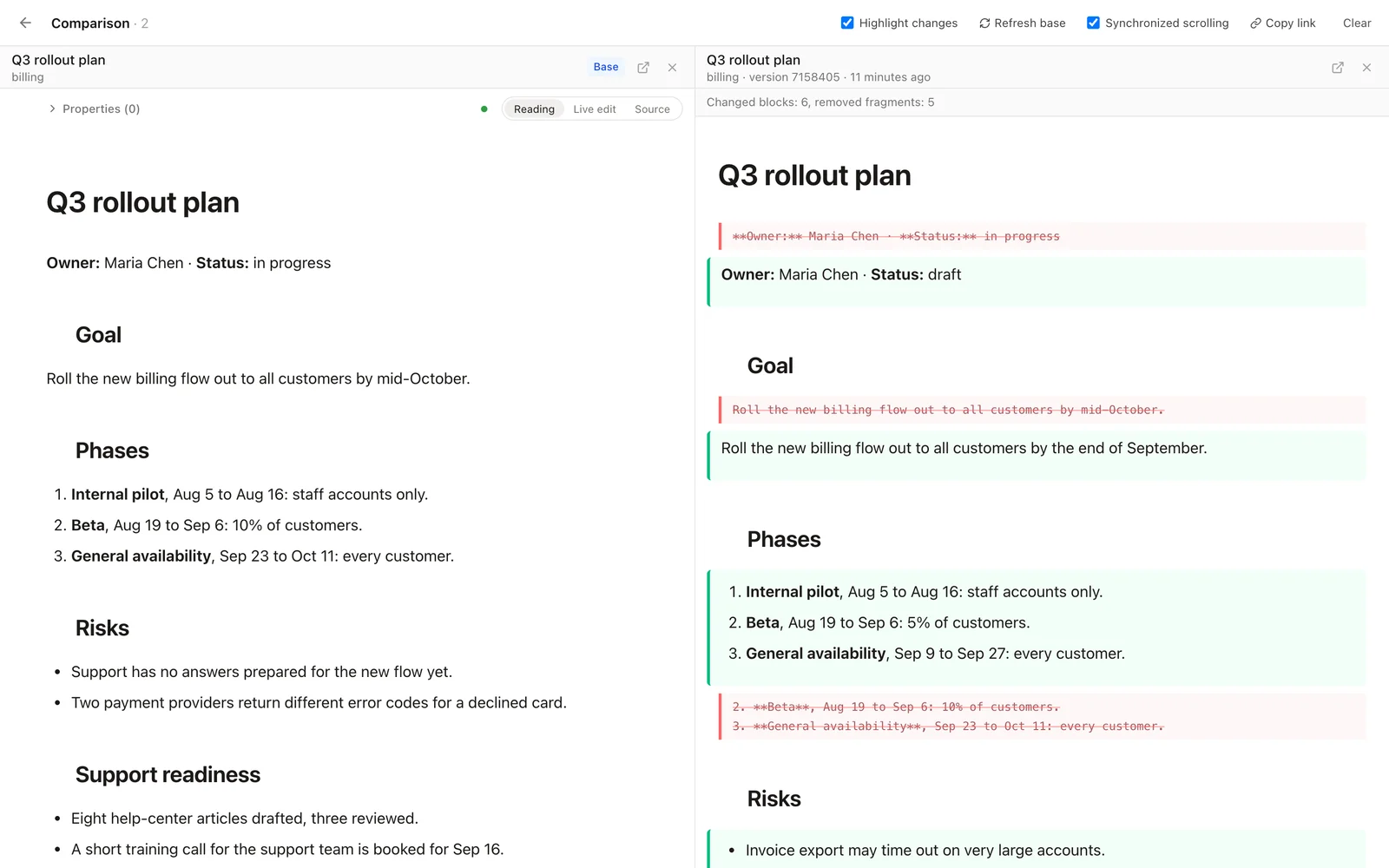
Highlighting reads the page when you switch it on. If the base page changes while you look, press Refresh base. Scroll sync is on by default when a version is among the columns.
Share the comparison as a link
The address of the compare view lists the columns and their order: page ids, and for a version the commit it comes from. It holds no text and no titles, so the link itself reveals nothing. Whoever opens it sees each column with their own rights. A column they cannot open shows a notice, and the other columns still work. Sending the link never gives anyone access to a page.
The list behind the chip is yours alone: it is kept in your browser, survives a reload and does not follow you to another browser. The link is how you hand a comparison to someone else.
Where it stops
- Five columns at most. Extra items in a link are dropped.
- Highlighting compares text. Documents are compared block by block, so a paragraph that moved shows up as changed. Only version columns are marked, against the leftmost column. Live columns are not.
- Very large pages are not highlighted. The column says so and shows the page as it is.
- Version columns are read-only. A table or a base version shows the file's text with changed lines marked. A board or a file version is a preview without marks.
- The list is per browser. Use the link to share.
The full list of limits is in LIMITATIONS.
Try it
Compare is available in Folio 0.4.1. To run Folio yourself, start with the install guide. The code is on GitHub under the MIT license. If you keep your own page templates, see custom space templates; for how page history is made, read docs-as-code in the browser.
See it in a running Folio
Open the live demo and click through a real Folio instance, or install it and move one space over. Folio is open source and stores everything in Git.
Related
More from the blog
- Publish a Cursor canvas to your team wiki: dashboards that outlive the chat
- Publish a Claude artifact to your team wiki: interactive pages that live in Git
- Confluence MCP, Notion MCP and a wiki that is its own MCP server
- Export Confluence to Markdown and keep it in Git
- Mermaid diagrams in a team wiki: keep them as code
- See how your team's knowledge connects: graph, Canvas and Bases in Folio 0.4
- Open an Obsidian vault as a team wiki, without changing a file
- Publish a wiki space as a public website, and let visitors ask it questions
- New hires ask the wiki, and the wiki learns what it lacks
- Folio boards: built on Excalidraw, made for teams