Make any page a template: custom templates for your Folio space
· Sergii Kravtsov · Folio
Every team writes the same few documents again and again: meeting notes, a decision record, a project kickoff, a postmortem. The first five minutes of each one go to copying the last one and deleting its contents. Folio now lets a space keep its own templates, so a new page starts from the shape your team has agreed on.
A template is a page. It can be a document, a board, a data table, a form or a base, and it can have subpages. Below: how to make one, how to use it, where it lives, what a new space starts with, and the limits. The pictures come from the public demo.
Make any page a template
Right-click a page in the sidebar and choose Make template. A dialog asks for a name, which starts as the page title, and an optional description. If the page has subpages, an Include subpages box appears, on by default.
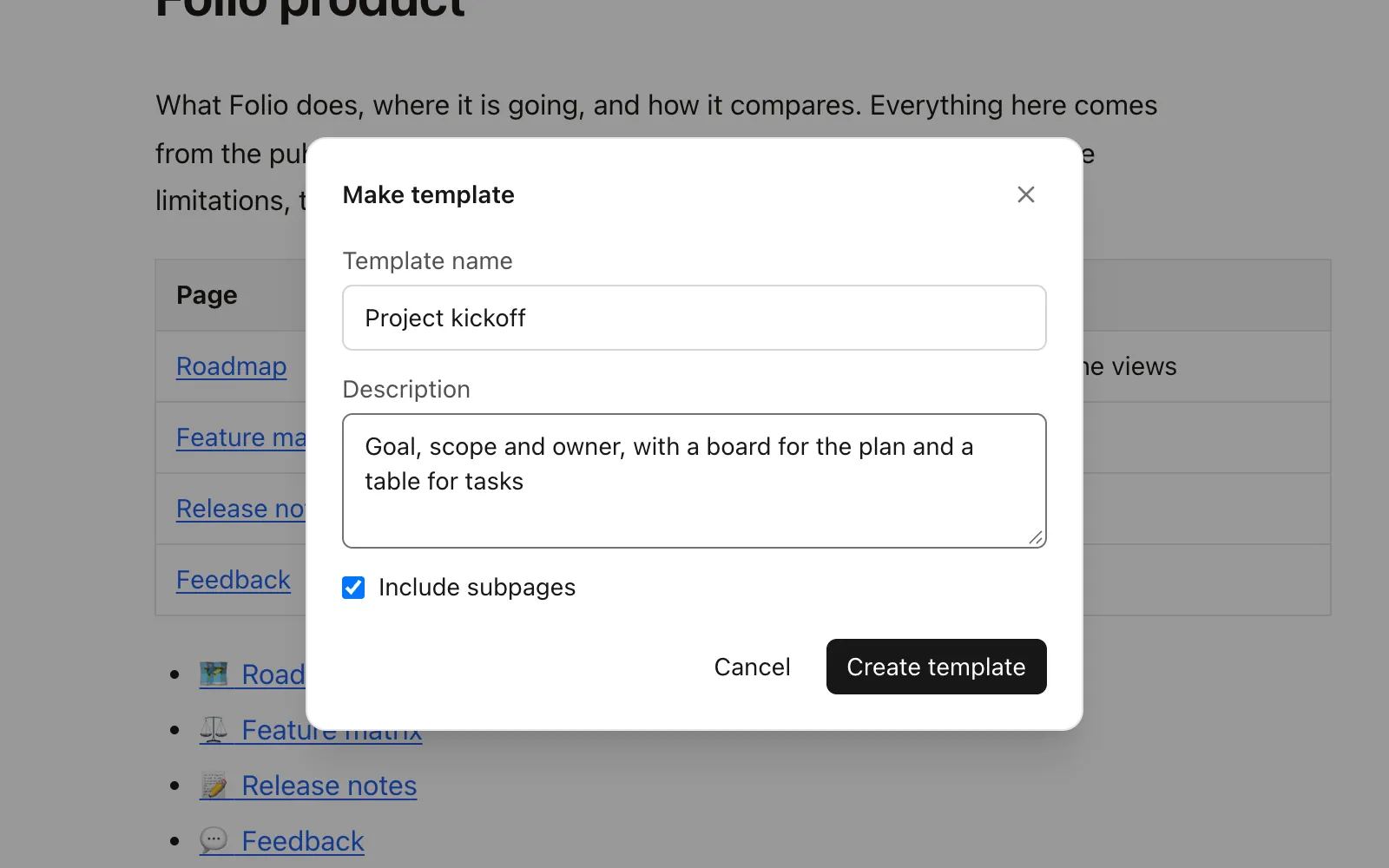
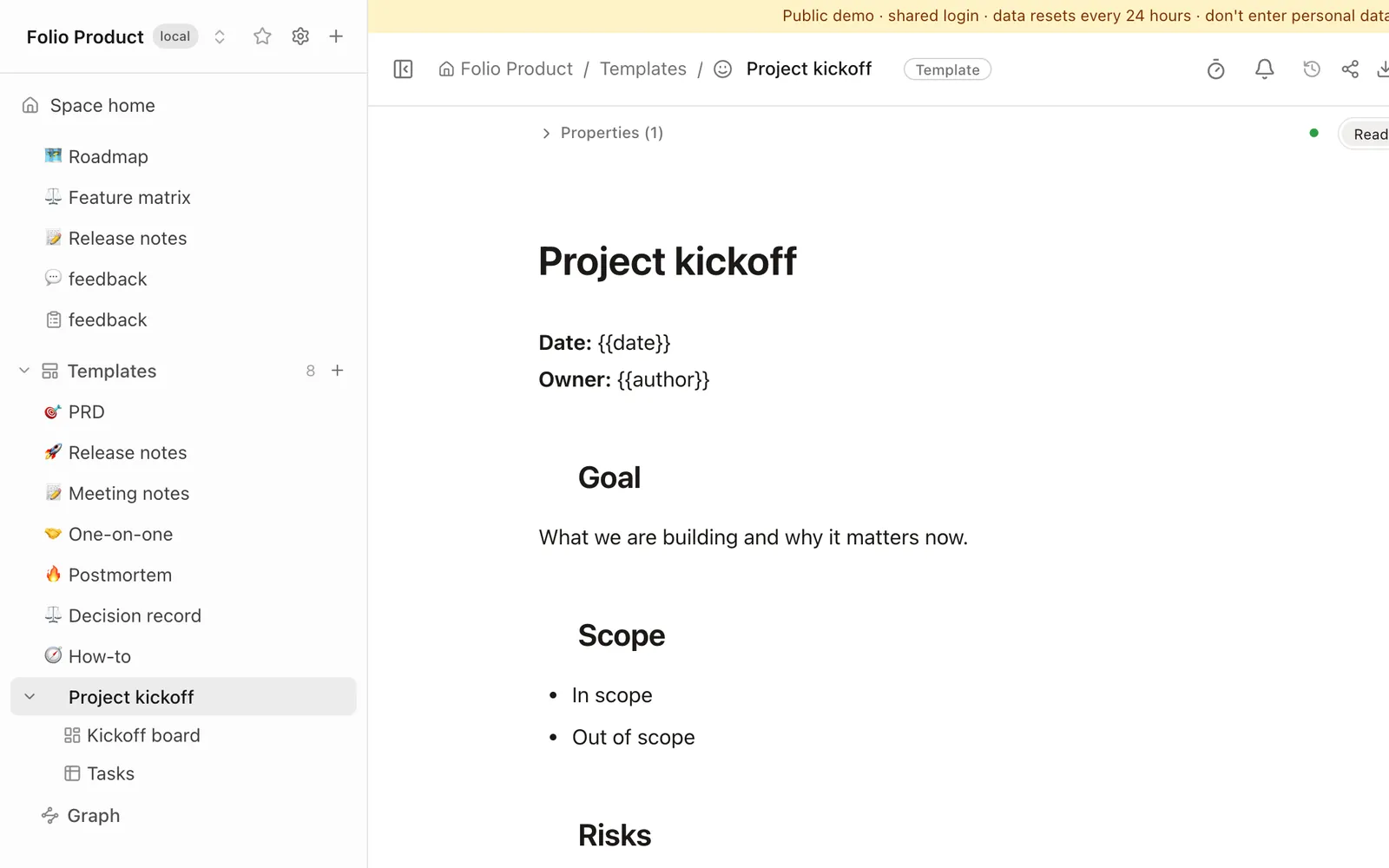
Folio copies the page, so the original stays where it is. While the copy is made the button says Creating, and when it is done the Templates section opens and a message offers to open the new template. The description is kept as a property of the template. It shows under the template's name when someone picks it, and it is not copied into the pages made from it. The home page of a space cannot be made a template.
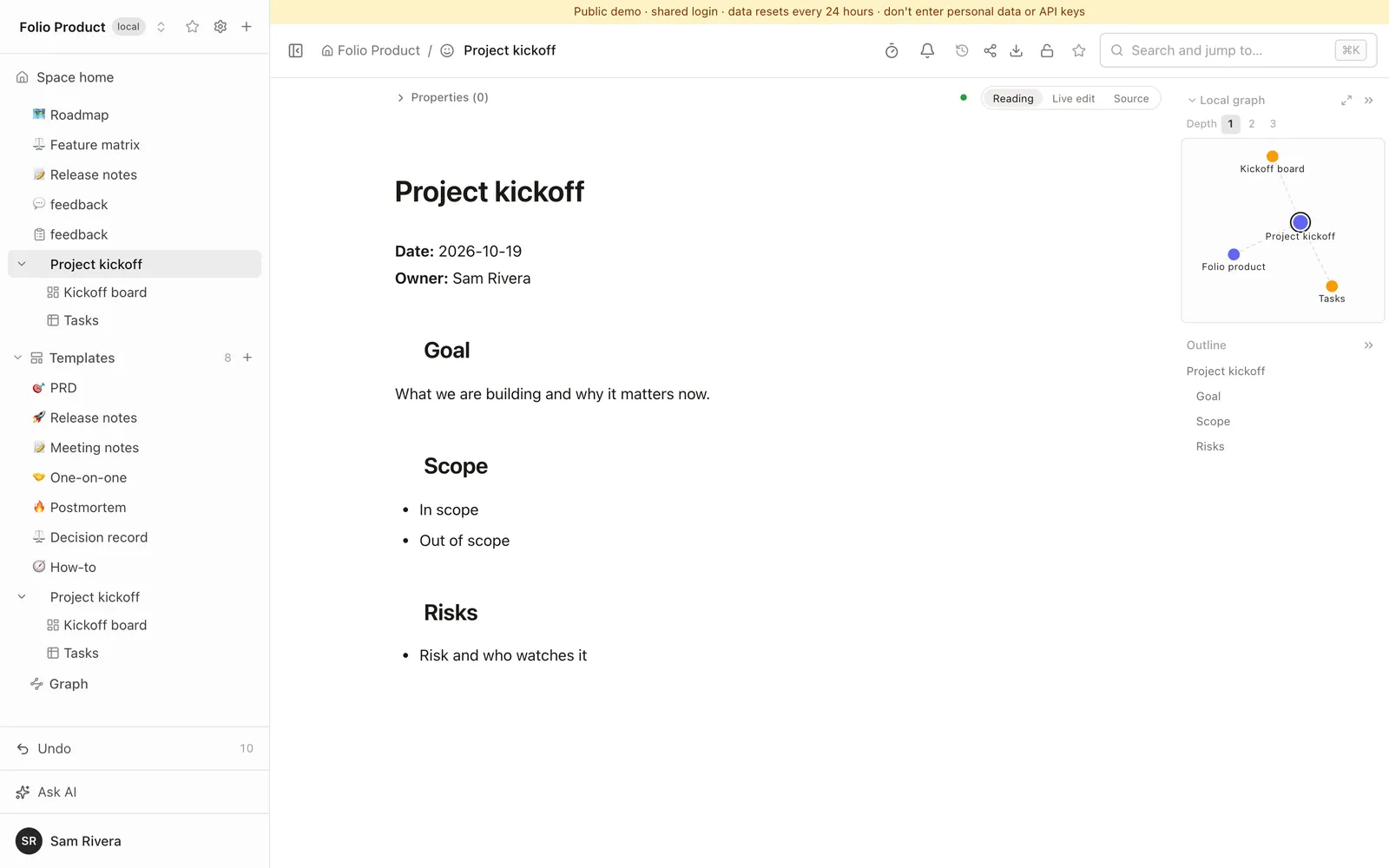
In this example the page was a Project kickoff with a board for the plan and a table for tasks underneath. The template is the whole tree.
The Templates section
Editors of a space get a Templates section in the sidebar, with the number of templates next to it. Open a template to edit it like any other page. Rename or delete it from its menu, or press + in the section to start a blank one with the same dialog. An open template carries a Template badge in the breadcrumbs, so nobody mistakes it for a real page. People who can only read a space do not see the section.
Create a page from a template
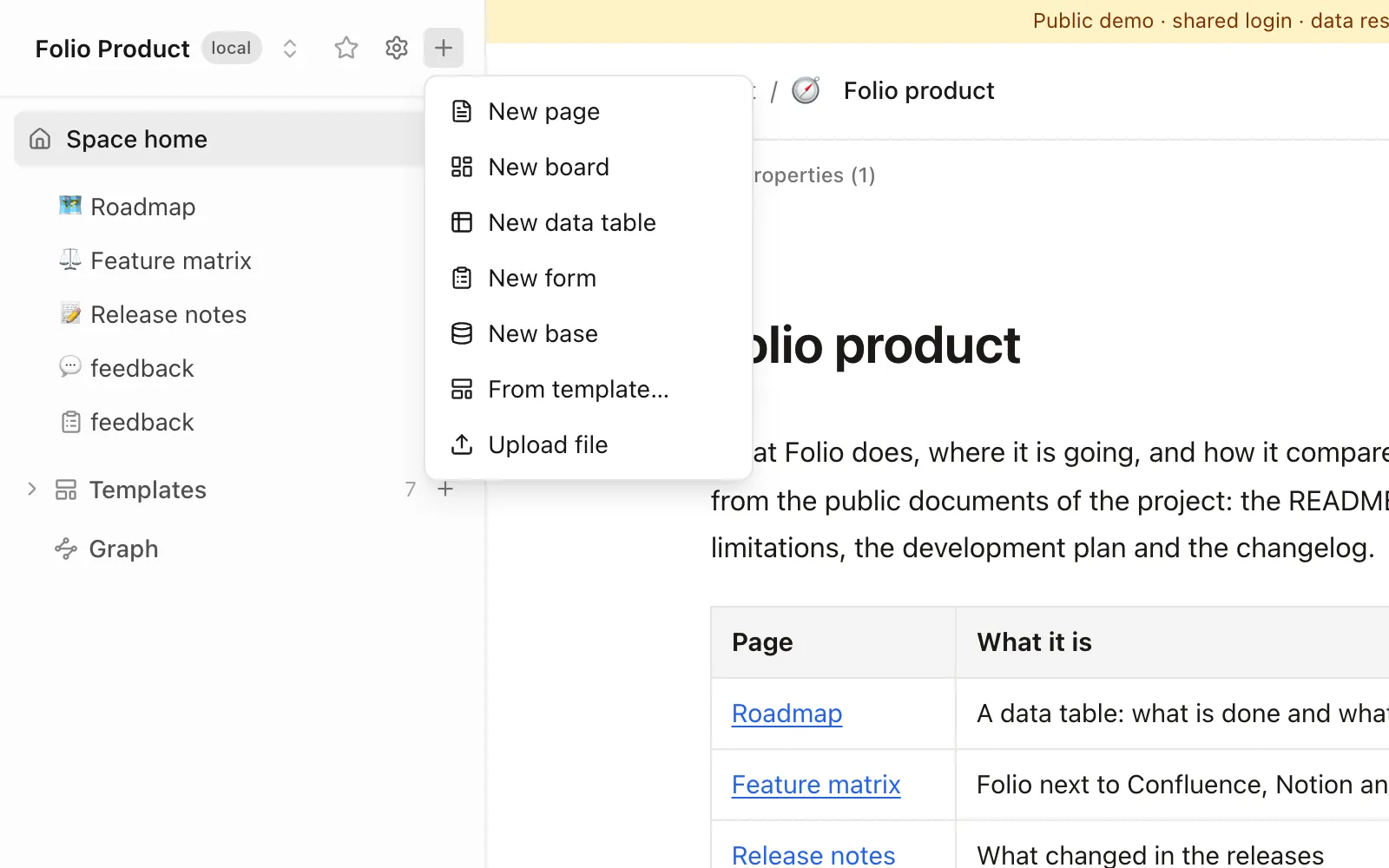
Press + at the top of the space, or on the row of any page to create the new page under it, and choose From template.
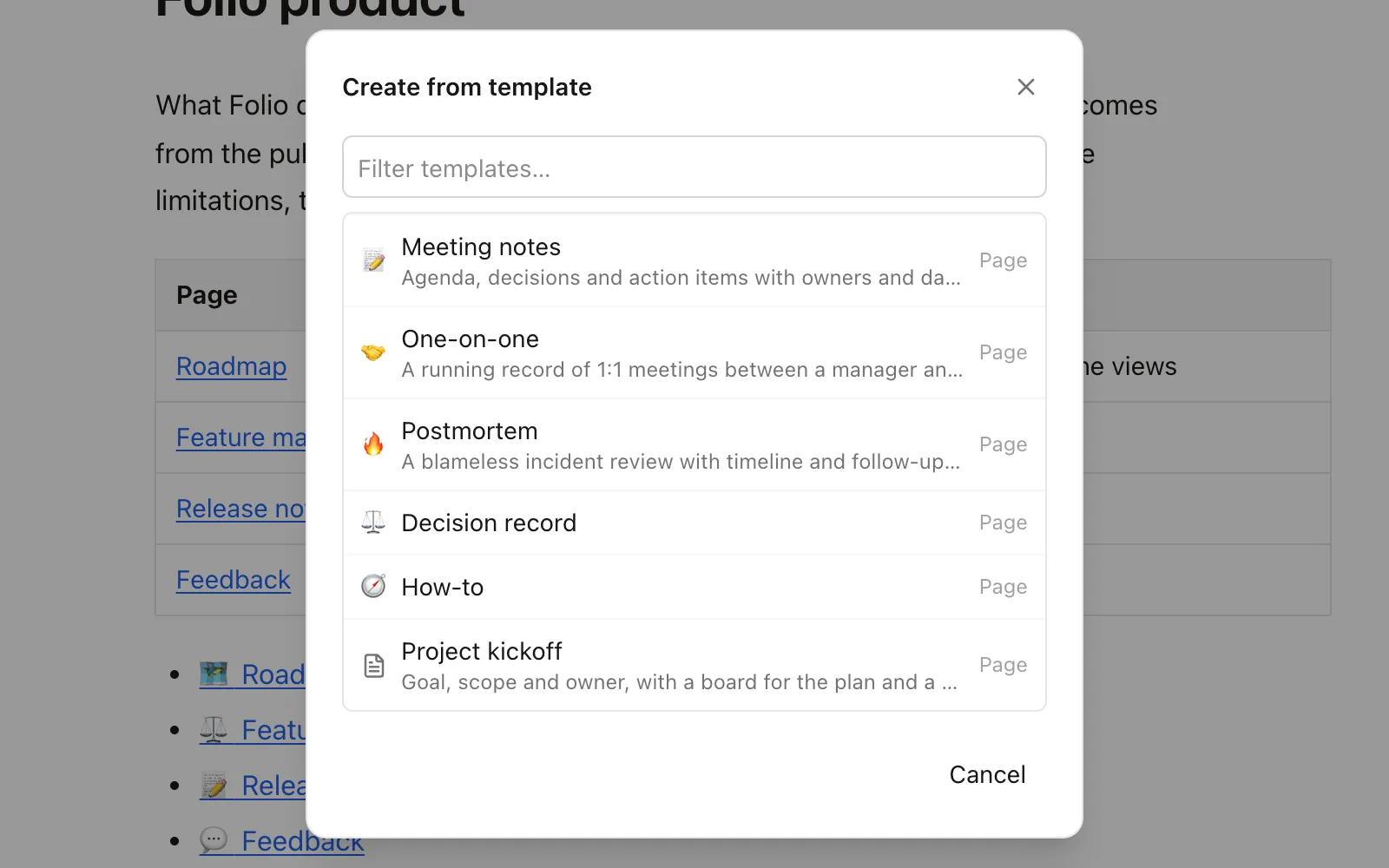
A window lists the templates of the space with their icon, kind and description. A filter box helps when the list is long.
Click one and the copy is there at once, with its subpages, properties and icon. There is no naming step: the new page takes the template's title, and you rename it when you want to.
In a document, three placeholders are filled in as the copy is made. Write date, author or title between double curly braces. Folio puts in today's date as year-month-day, the name of the person who creates the page, and the title of the new page. Any other word in double braces stays as you wrote it, which is handy for blanks such as a project name that a person fills in.
Templates are files in Git
Templates are ordinary pages in a folder named _templates at the top of the space. That makes them files in Git like every other page. Edit one in your IDE, review a change to it in a merge request, or copy the folder into another repository to share your templates between spaces.
The folder is kept out of the page tree, the graph, tags and public websites. A half-written template never shows up as content, and it is never published with the space.
What a new space starts with
A new empty space comes with three templates: Meeting notes, How-to and Decision record. They are written in the language of the person who creates the space, English or Ukrainian. They are ordinary templates, so edit them or delete them. A space created from a Git repository, or imported, does not get them, because its files are yours.
Big spaces stay fast
Making a template and creating from one copy pages, and Folio reindexes only the pages it touched, not the whole space. In our test, copying a subtree of 40 pages in a space of 6,000 pages went from about 13 seconds to about 1.3 seconds.
Try it
The public demo has ready templates in the Folio Product and Folio Handbook spaces, and the login page signs you in with one click. Both spaces are open to editing. Make a template from any page, then create a page from it. The demo resets every 24 hours, so nothing you add stays.
The eleven free Markdown templates on this site (meeting notes, SOP, PRD, runbook, postmortem and more) are in the demo as real templates too. Browse them here, copy one into your own space, or just open it in the demo and use it.
One small change from the same day: a signed-in person who can open a page now goes from a share link straight into their own account.
Where it stops
- Title only in documents. The title placeholder is filled in documents. Boards, tables and forms are copied as they are.
- A template is not a live link. Changing a template does not change the pages made from it earlier.
- Templates need a connection. The picker and the Templates section read from the server, so they do not work offline.
- Only editors manage templates. Readers do not see the section.
- The home page of a space cannot be made a template.
The full list of limits is in LIMITATIONS.
See it in a running Folio
Open the live demo and click through a real Folio instance, or install it and move one space over. Folio is open source and stores everything in Git.
Related
More from the blog
- Mermaid diagrams in a team wiki: keep them as code
- See how your team's knowledge connects: graph, Canvas and Bases in Folio 0.4
- Open an Obsidian vault as a team wiki, without changing a file
- Publish a wiki space as a public website, and let visitors ask it questions
- Docs-as-code without the IDE: edit your repository's docs in a browser
- New hires ask the wiki, and the wiki learns what it lacks
- Folio boards: built on Excalidraw, made for teams