Mermaid diagrams in a team wiki: keep them as code
· Sergii Kravtsov · Folio
A diagram stored as a picture goes stale the day the system changes, because nobody can find the file it was drawn in. A diagram stored as text next to the page it explains changes in the same edit, shows up in the same diff and is reviewed like a sentence. Mermaid is the most common way to do that: you write a few lines and the tool draws the picture.
This post shows three diagrams as code, with what they draw, says where Mermaid renders, and explains how Folio and our free live editor handle it. The limits come last.
Why keep a diagram as code
The failure is familiar. Someone draws the architecture in a desktop tool, exports a PNG and pastes it into the wiki. A year later the system has changed, the PNG has not, and the source file is on a laptop that nobody has. With text, the source is the page. Three things follow.
- A diagram has history. A change to a diagram is a change to text, so Git shows what moved and who moved it, and an old version is one command away.
- Review works. A pull request that changes a flow shows the changed line, not a new picture to compare by eye.
- People and agents can both edit it. A teammate who does not know the syntax uses a visual editor, and an agent reads and writes the code like any other text.
The price is that Mermaid decides the layout. You describe nodes and links and it places them. For a hand-tuned picture, a whiteboard is the better tool, and Folio has boards built on Excalidraw for that. For a diagram that has to stay correct, code wins.
Three diagrams, as code
A flowchart for a process
A flowchart says what happens, in what order, with decisions. TD means top down; LR would run left to right. A node is an id and a label, and the brackets set its shape: square brackets for a step, braces for a decision, round brackets inside square ones for a start or an end. The words between the dashes label the link.
flowchart TD
  start([Pull request merged]) --> tests{Tests pass?}
  tests -- yes --> staging[Deploy to staging]
  tests -- no --> fix[Fix and push again]
  fix --> tests
  staging --> smoke{Smoke test OK?}
  smoke -- yes --> prod[Deploy to production]
  smoke -- no --> rollback[Roll back staging]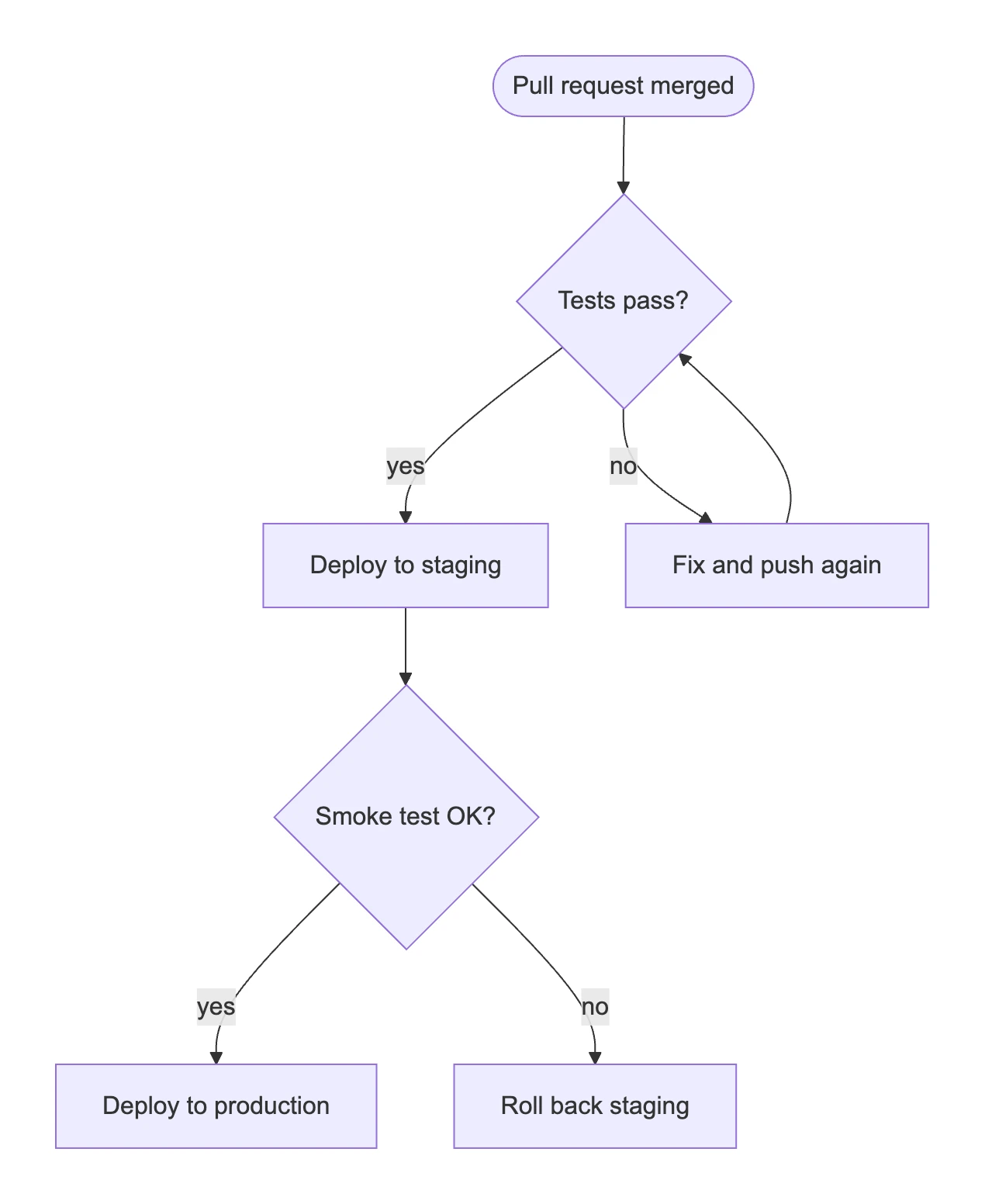
A sequence diagram for who talks to whom
A sequence diagram lists the parties first and then the messages in order, so it suits protocols and handoffs. This one is the sign-in of an MCP client to Folio, as described in the MCP documentation. The line autonumber numbers the arrows, a solid arrow is a request and a dashed one is a reply.
sequenceDiagram
  autonumber
  participant C as MCP client
  participant F as Folio
  C->>F: POST /mcp without a token
  F-->>C: 401 with the metadata address
  C->>F: Read the OAuth metadata
  C->>F: Register the client (POST /oauth/register)
  C->>F: Open /oauth/authorize (PKCE, S256)
  F-->>C: Sign in, consent screen, redirect with a code
  C->>F: POST /oauth/token with the code
  F-->>C: Access token (1 hour) and refresh token
  C->>F: POST /mcp with the access token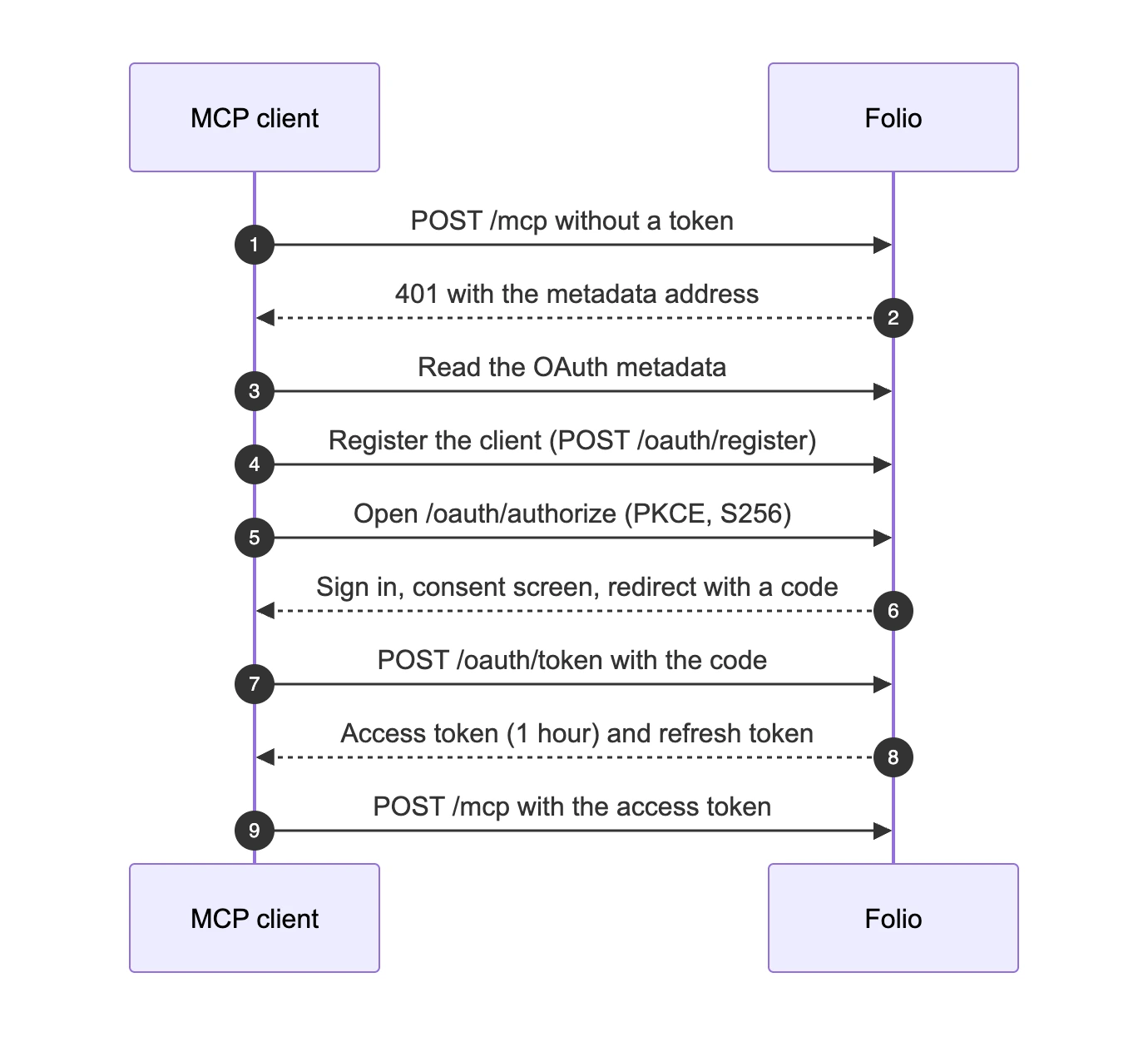
An entity-relationship diagram for data
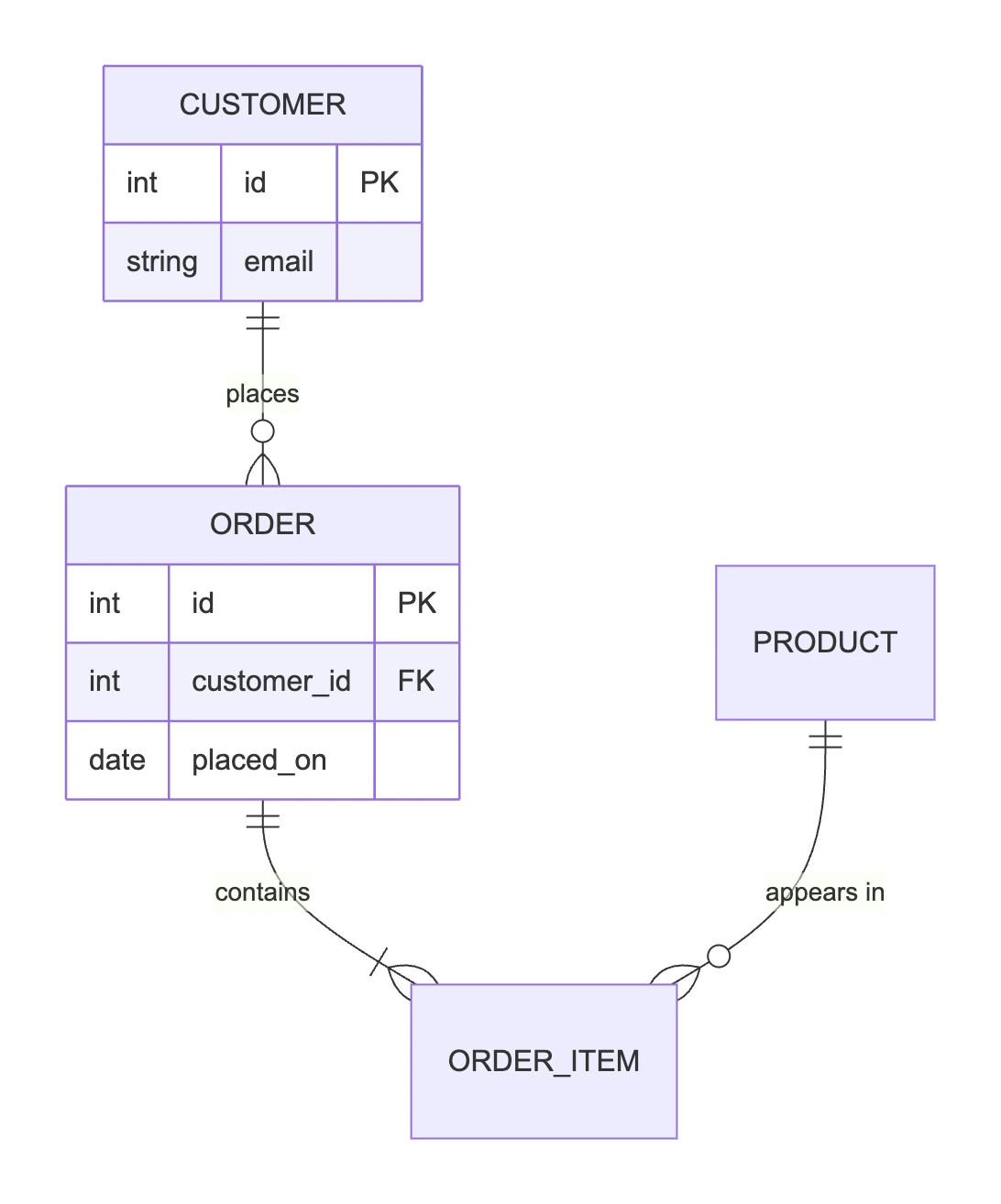
An ER diagram names the entities and how they relate. The symbols at the ends of a line give the cardinality: the pair ||--o{ reads as exactly one on the left and zero or more on the right. The braces after an entity list its attributes. This is a sample schema, not Folio's.
erDiagram
  CUSTOMER ||--o{ ORDER : places
  ORDER ||--|{ ORDER_ITEM : contains
  PRODUCT ||--o{ ORDER_ITEM : "appears in"
  CUSTOMER {
    int id PK
    string email
  }
  ORDER {
    int id PK
    int customer_id FK
    date placed_on
  }
Where Mermaid renders
A fenced code block marked mermaid is drawn as a diagram by GitHub, in issues, discussions, pull requests, wikis and Markdown files, and by GitLab. Where a tool does not know Mermaid, the reader sees the code, which is still readable text and not a broken image. The versions differ, though: GitHub says to put the word info in a block to learn which Mermaid version it runs, and a newer diagram type may not draw the same everywhere.
So the block in the Markdown file looks like this, with the diagram code between the two fence lines.
```mermaid
flowchart LR
  A[Draft] --> B[Review] --> C[Published]
```
Mermaid in Folio
In Folio a Mermaid diagram is a block on the page, added from the slash menu or the toolbar, and it is stored as an ordinary Mermaid code block in the Markdown file. The file in your Git repository therefore renders on GitHub and GitLab too, and an IDE or an agent sees plain text.
Folio edits the block two ways at once. You can build on a canvas: a plus on a node adds a connected node, a plus on a link puts a node into it, and a handle drags a new link from node to node. Or you type the code and the canvas follows. The two stay in sync. There are nine starting templates (flowchart, sequence, class, state, ER, Gantt, timeline, pie and mind map) and a full screen mode, and when the syntax is wrong you get a readable message and not a broken picture.
Agents can write diagrams as well. A diagram is text, so an agent that creates or updates a page over MCP can include a Mermaid block like any other Markdown. We did not build a diagram-specific tool: the agent writes the code and Folio draws it. How an agent connects is in our post on wiki MCP servers.
The free live editor
To try it before you decide anything, the Mermaid live editor on this site works the same way, free and in your browser. Pick a template, change it on the canvas or in the code, share the diagram as a link, or export SVG or PNG. The code is packed into the part of the address after the hash sign, which browsers do not send to a server. Copy the code into a Markdown file and it renders on GitHub or in Folio.
Habits that keep diagrams useful
- Keep a diagram to what fits on one screen. Split a big one into two diagrams on linked pages.
- Put the words in labels and keep ids short, so a later edit touches one place.
- Quote a label that holds brackets, colons or other special characters: A["Step (draft)"].
- Say in the text above what the diagram shows. For screen readers add a title and a description to the diagram itself: Mermaid supports accTitle and accDescr in every diagram type.
- Look at the diagram where your readers will see it. A different Mermaid version can draw it differently.
Where it stops
- Mermaid owns the layout. The canvas edits the structure and style of a diagram (nodes, links, labels, shapes, colours), not positions, so you cannot drag a node to a spot of your choice.
- Not every type can be edited on the canvas. Git graph, journey, quadrant and other types still draw in the live editor, and you edit them as code.
- A syntax error stops the picture. The live editor keeps the last diagram that worked until you fix the code.
- Very large diagrams draw slowly, and Mermaid limits the size of the text it accepts.
- Beta diagram types change between versions, so one can look different on GitHub than here.
Try it
Open the Mermaid live editor, paste one of the three diagrams above and change it. To keep diagrams in a wiki that stores pages in Git, look at the public demo or follow the install guide. For the larger picture of docs next to code, read docs-as-code in the browser.
See it in a running Folio
Open the live demo and click through a real Folio instance, or install it and move one space over. Folio is open source and stores everything in Git.
Related
More from the blog
- Export Confluence to Markdown and keep it in Git
- See how your team's knowledge connects: graph, Canvas and Bases in Folio 0.4
- Open an Obsidian vault as a team wiki, without changing a file
- Publish a wiki space as a public website, and let visitors ask it questions
- Docs-as-code without the IDE: edit your repository's docs in a browser
- New hires ask the wiki, and the wiki learns what it lacks
- Folio boards: built on Excalidraw, made for teams