Skip to content
Folio Wiki

Features

Everything in Folio, on one page.

Everything on this page works in the product today.

Write

Write and think in the same place.

Documents and live co-editing, with every change saved as a Git commit.

Documents

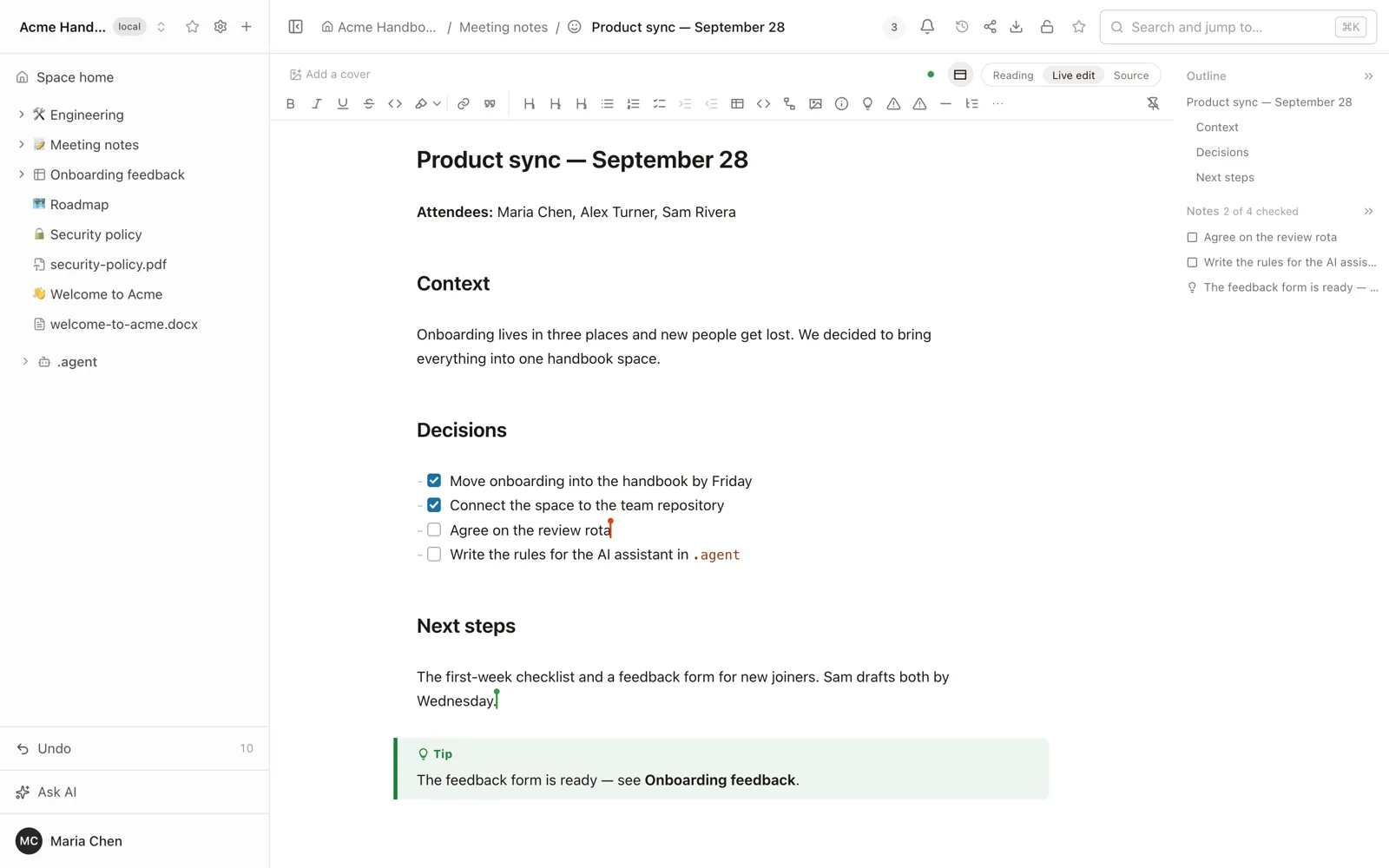
A Markdown editor that does not make you think about Markdown. Three modes: Reading, Live edit and Source. Paste from Excel or Google Docs and tables keep their formatting.

  • Callouts, checklists, tables with merged cells and colors, code blocks, collapsible sections.
  • [[ links a page, @ mentions a person, / inserts anything.
  • Outline, backlinks, a graph of the space and a local graph beside every page.
  • Obsidian vaults open as they are: wikilinks, embeds and callouts are drawn, and your files are never rewritten.
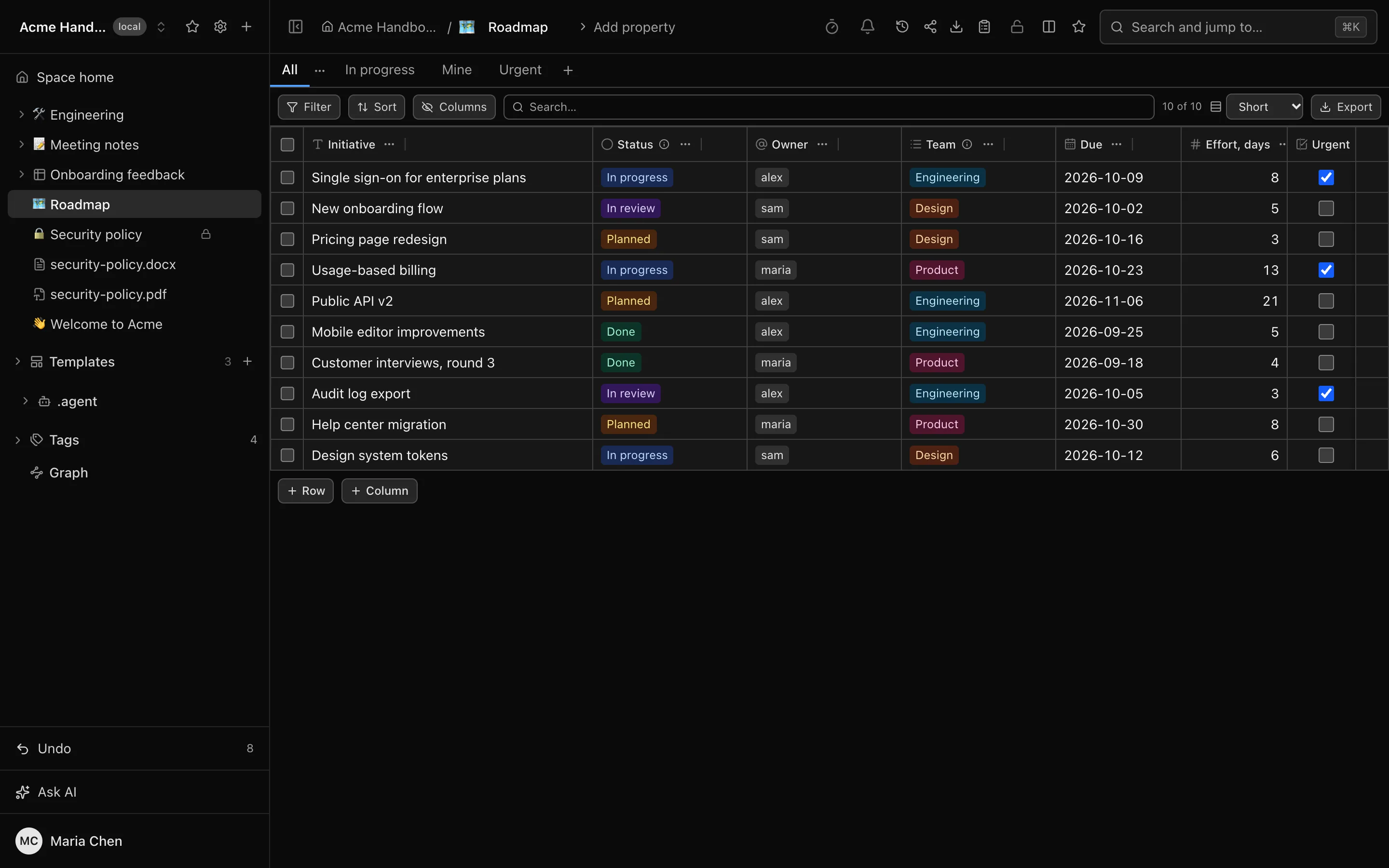
  • Your own page templates, and light and dark themes.
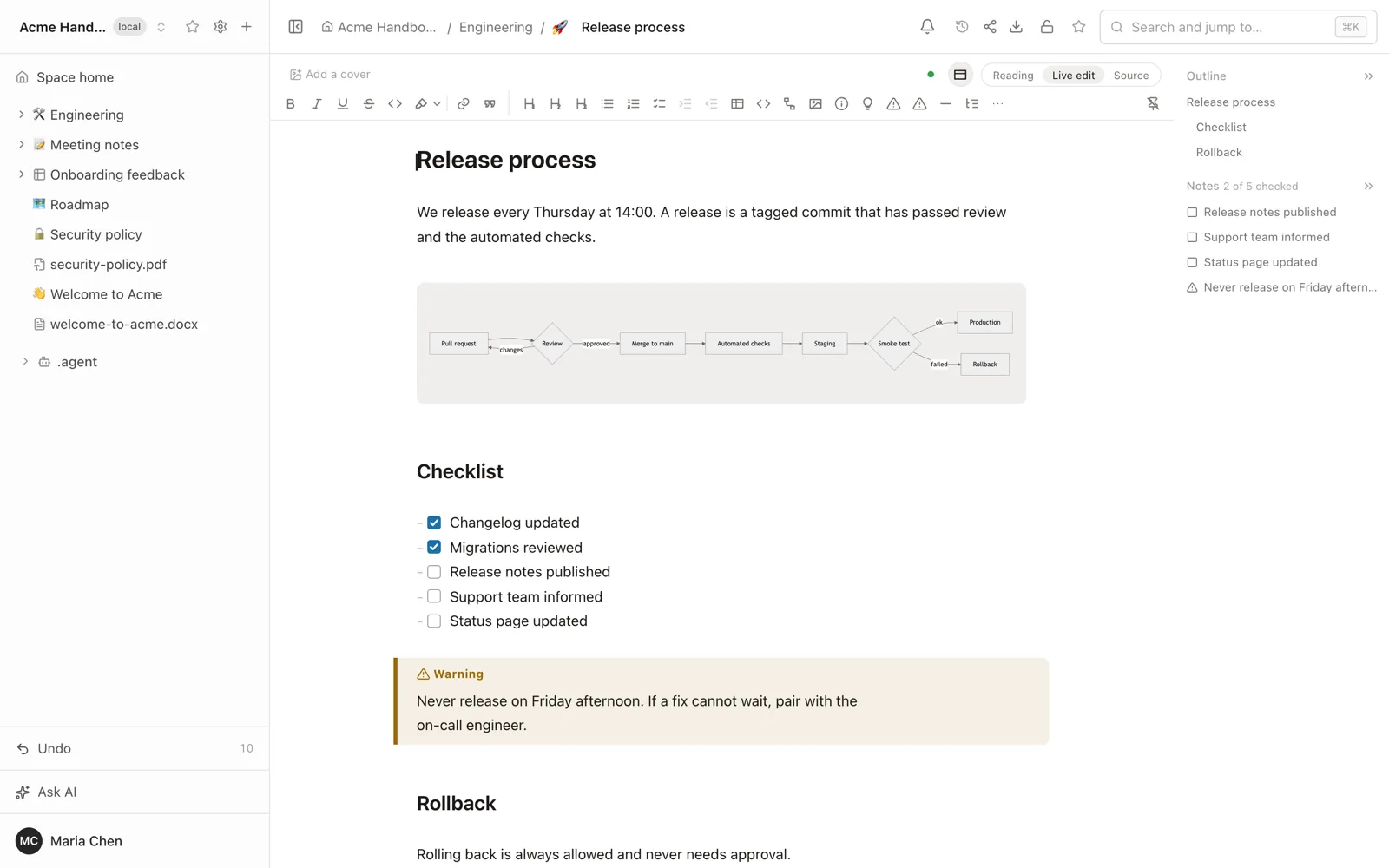
The Folio document editor
Live edit mode in the document editor

Write together

Documents, data tables and whiteboards are edited by several people at once. You see who is on the page and where their cursor is. When the page goes quiet, Folio commits, with the person who edited as the author.

  • Comments on a passage of text, an element of a whiteboard or a cell of a data table; agents read and answer them over MCP.
  • Type @ in a comment to mention a person. The bell reports a mention; there is no email.
  • Page owner and review date: mark a page as verified and see when it is overdue.
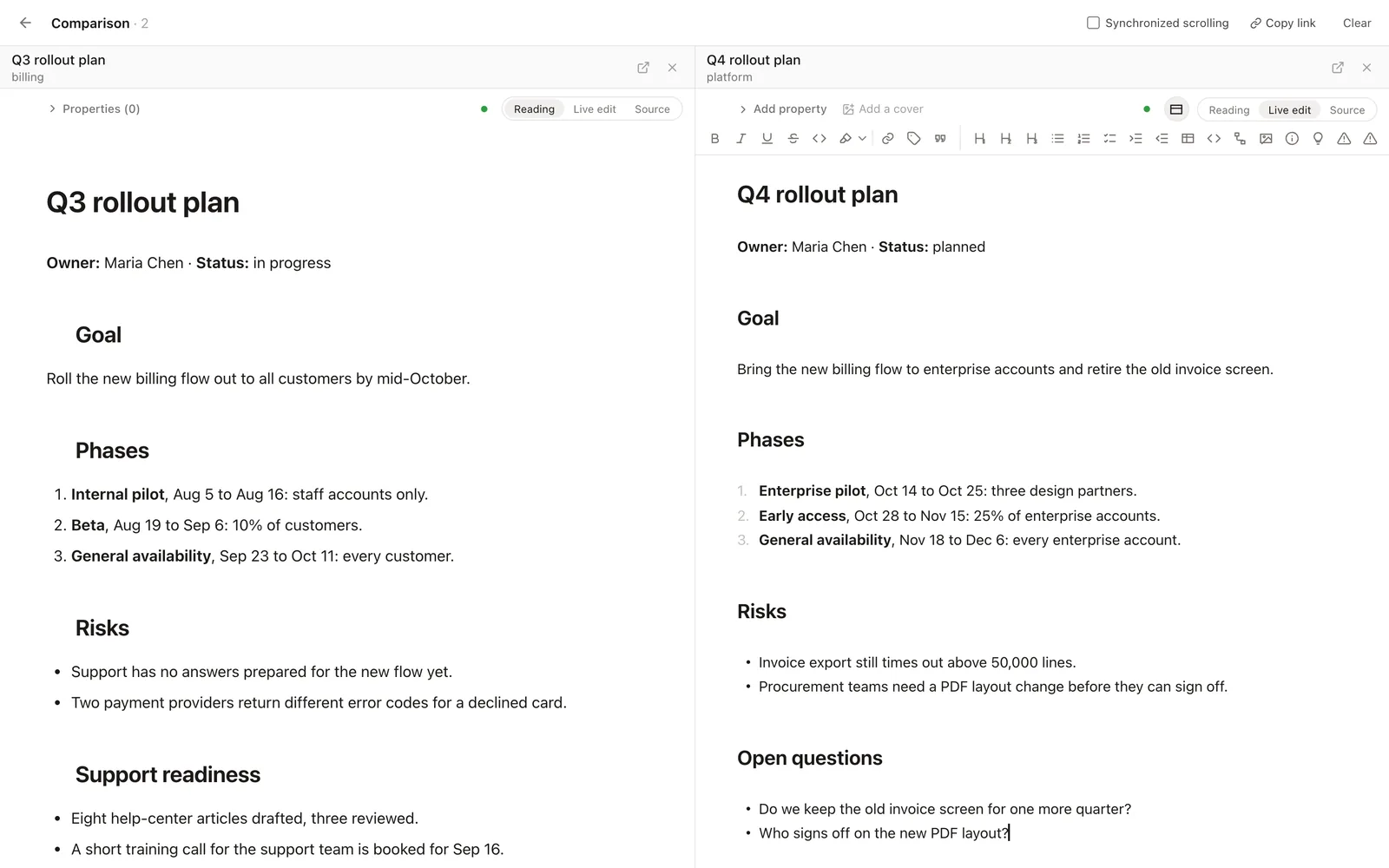
  • Compare up to five pages, or older versions of a page, side by side.
Several people editing one page with live cursors
Several people on one page, each with a cursor
Pages compared side by side

Data

Structured data next to your prose.

Tables and forms that stay readable files, not a separate database to run.

Data tables

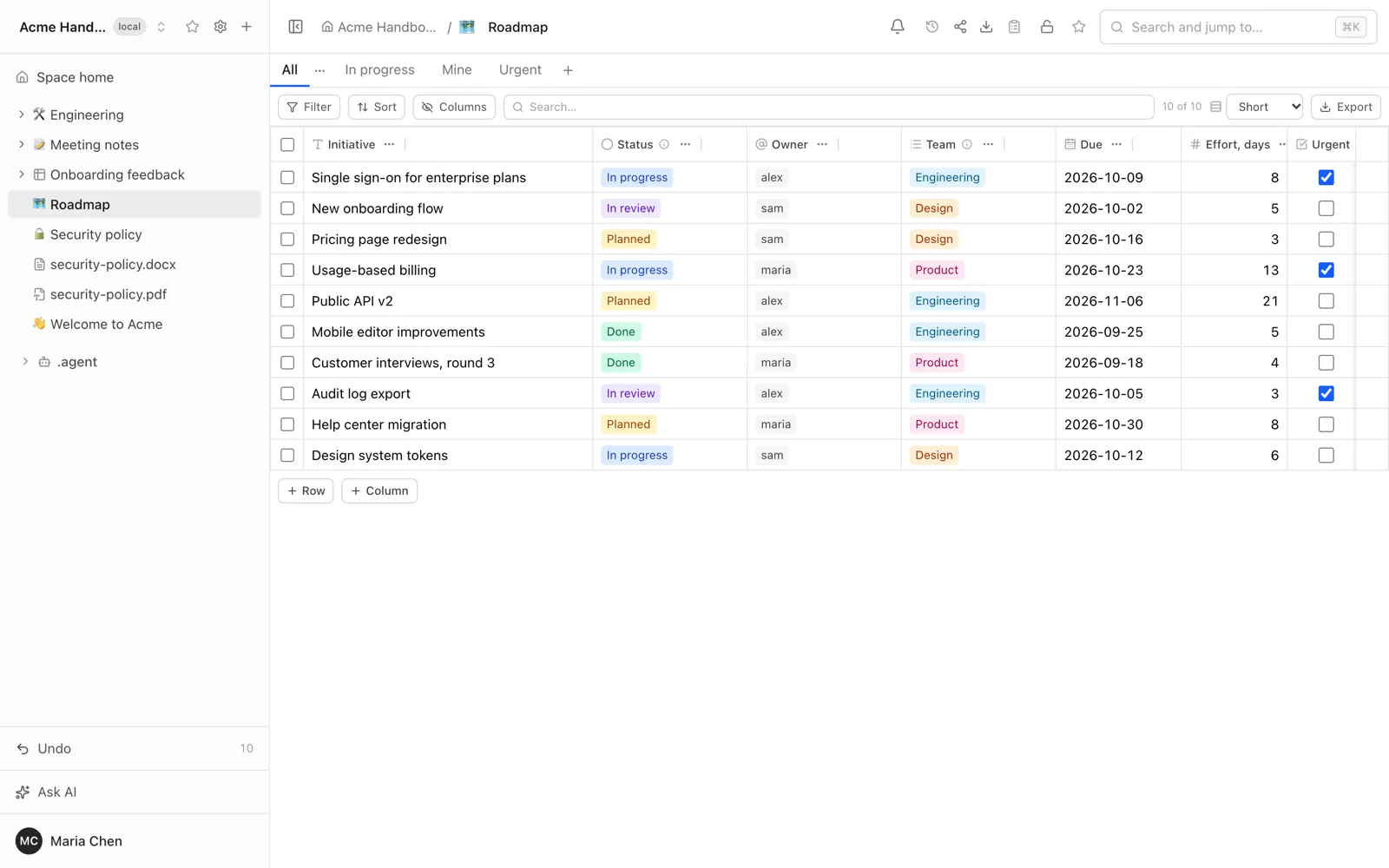
Spreadsheets that belong to the wiki: typed columns, saved views, filters and sorting. A small database you can link from any page and query from any agent. Edited together in real time, stored as one readable file in Git.

  • Column types: text, long text, number, date, checkbox, select, status, user, link.
  • Views as tabs, each with its own columns, order, multi-column sort and and/or filters, including me, today, this week.
  • Import and export; up to 20,000 rows per table.
A data table with typed columns and views
A table with typed columns and saved views

Forms

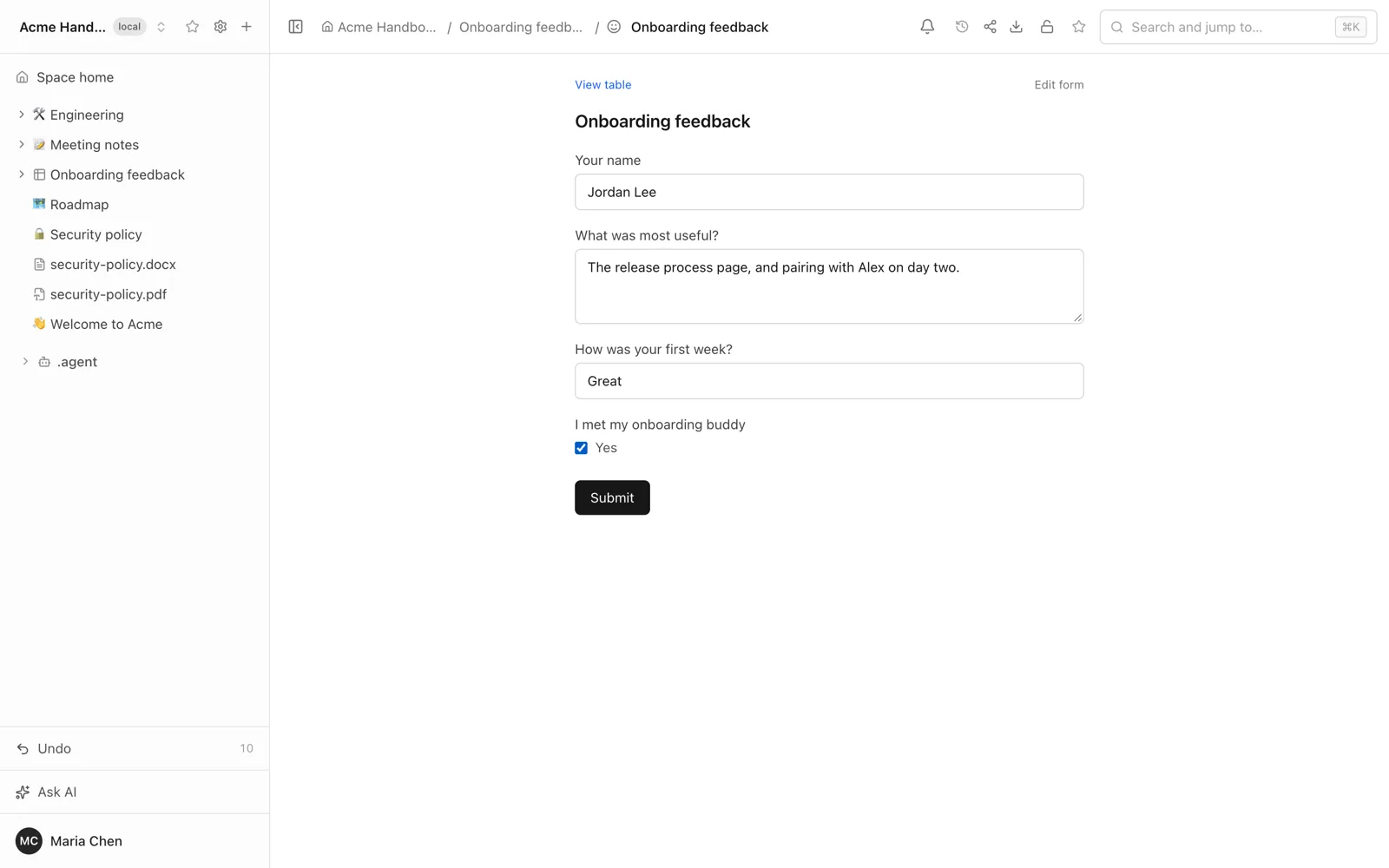
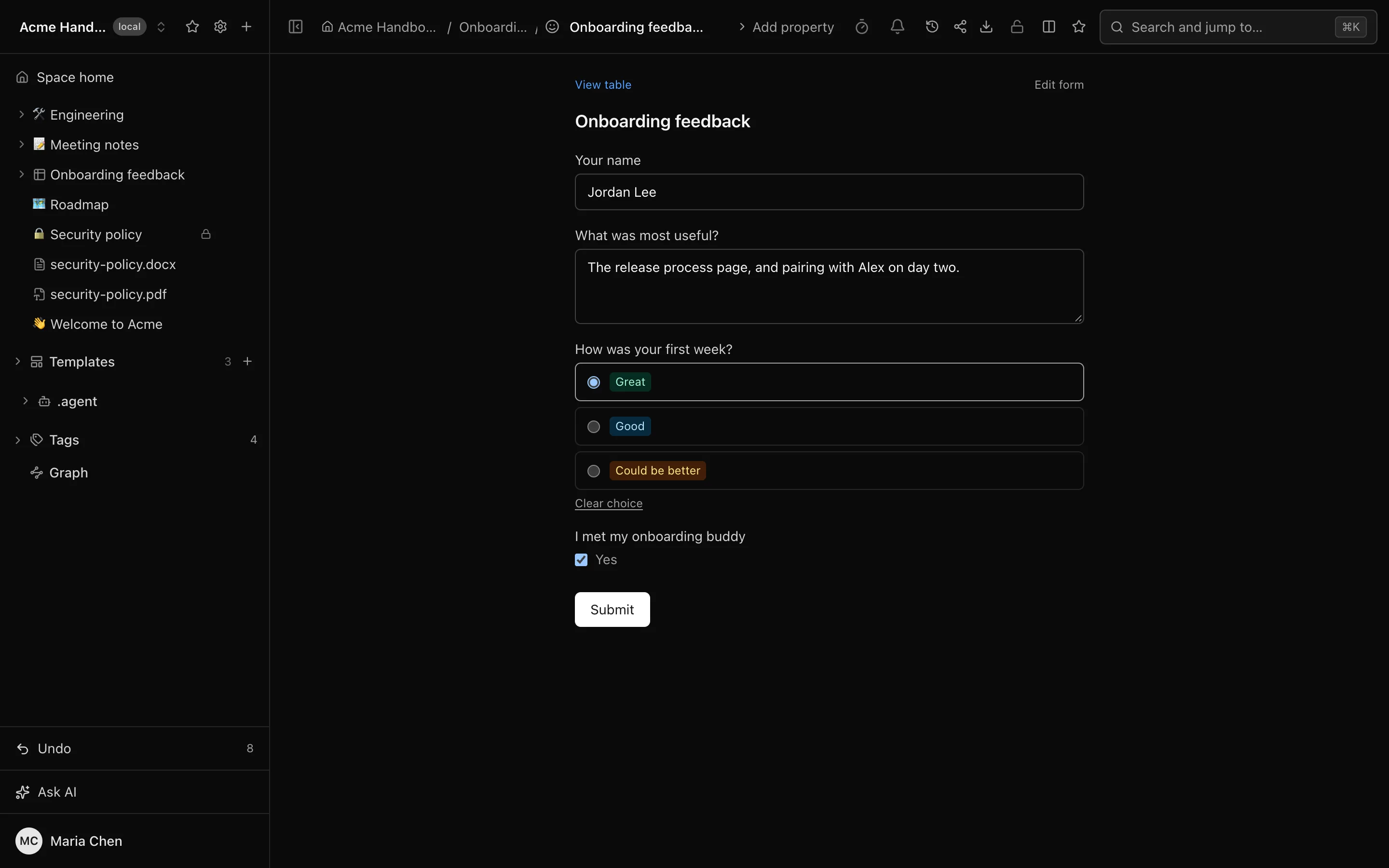
Forms turn a table into a questionnaire: every answer becomes a row. A form can be public, so people answer without an account.

  • One form per table, built from its columns.
  • Answers land in the table as ordinary rows you can filter and sort.
  • Public forms need no account from the person answering.
A form made from a table

Draw

Sketch it where the text is.

Boards and diagrams are pages too: real-time, versioned and shown anywhere.

Whiteboards

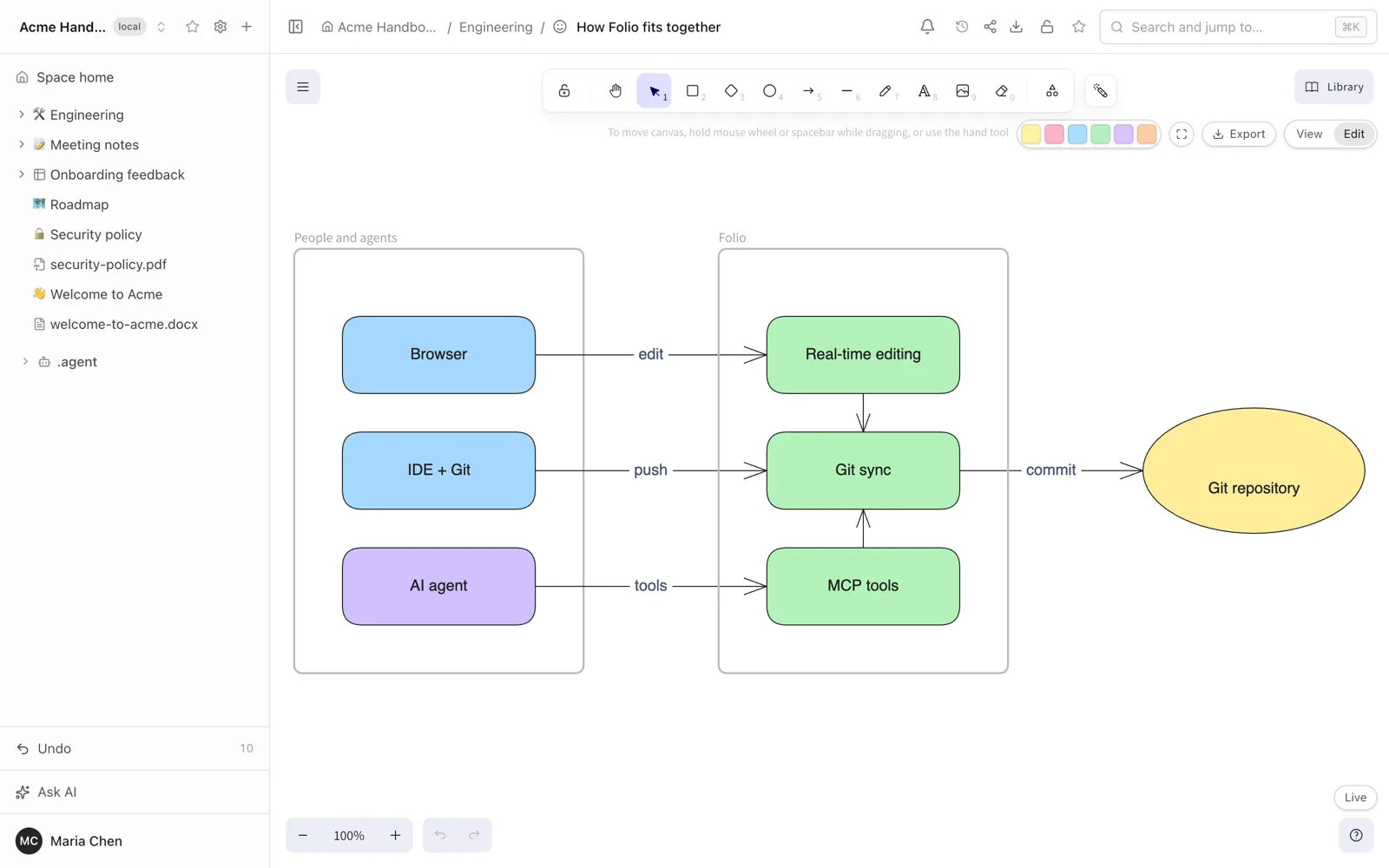
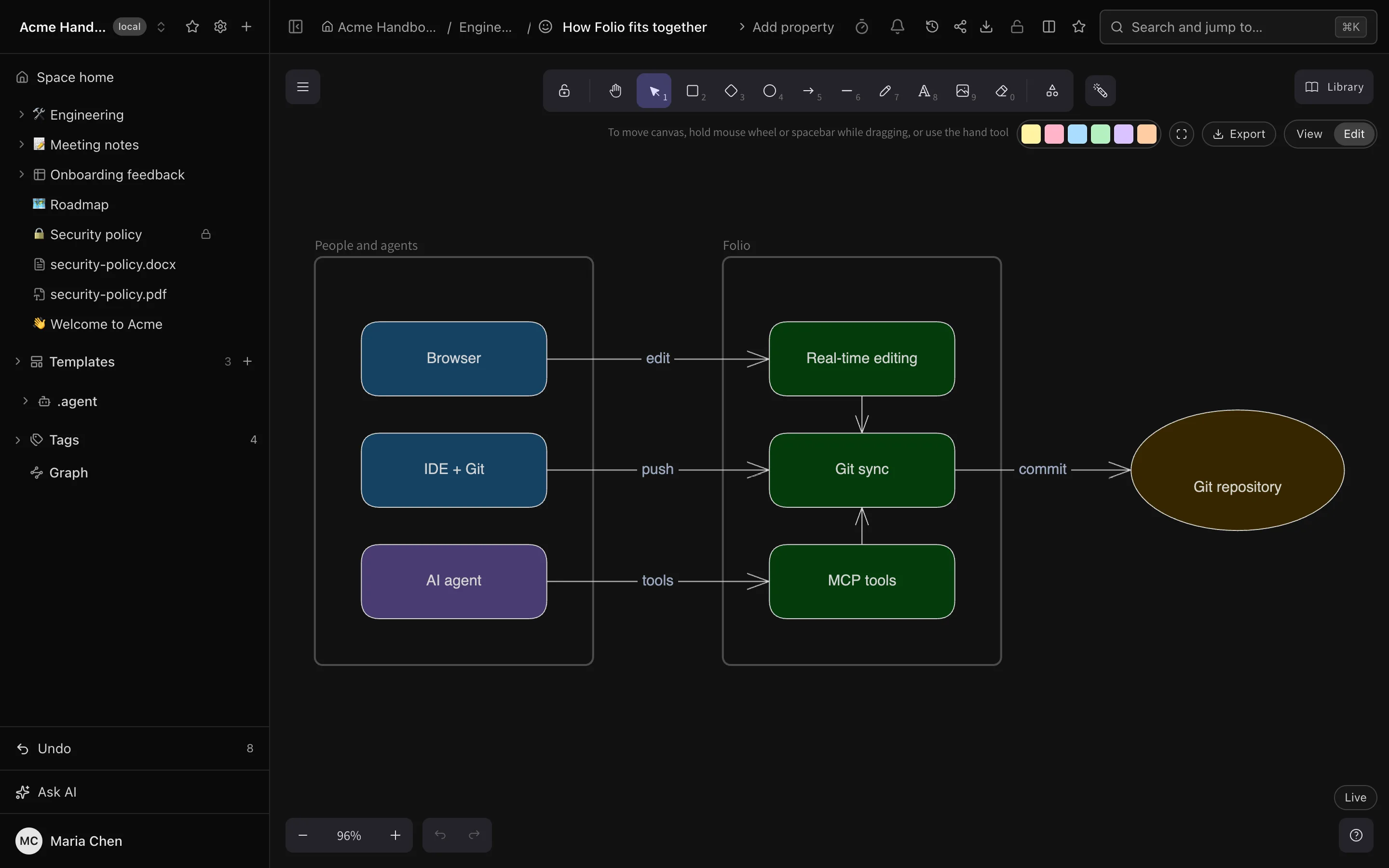
Excalidraw boards inside the wiki: architecture, flows, workshops. Drawn together in real time and saved as SVG files that render anywhere. An agent can draw one over MCP from a short description of boxes and arrows; people then keep editing it like any other board.

  • Drawn together in real time.
  • Saved as SVG files that render anywhere.
  • Comments on a single element of the board.
An Excalidraw whiteboard
A board created by an agent and edited by people

Diagrams you draw, not type

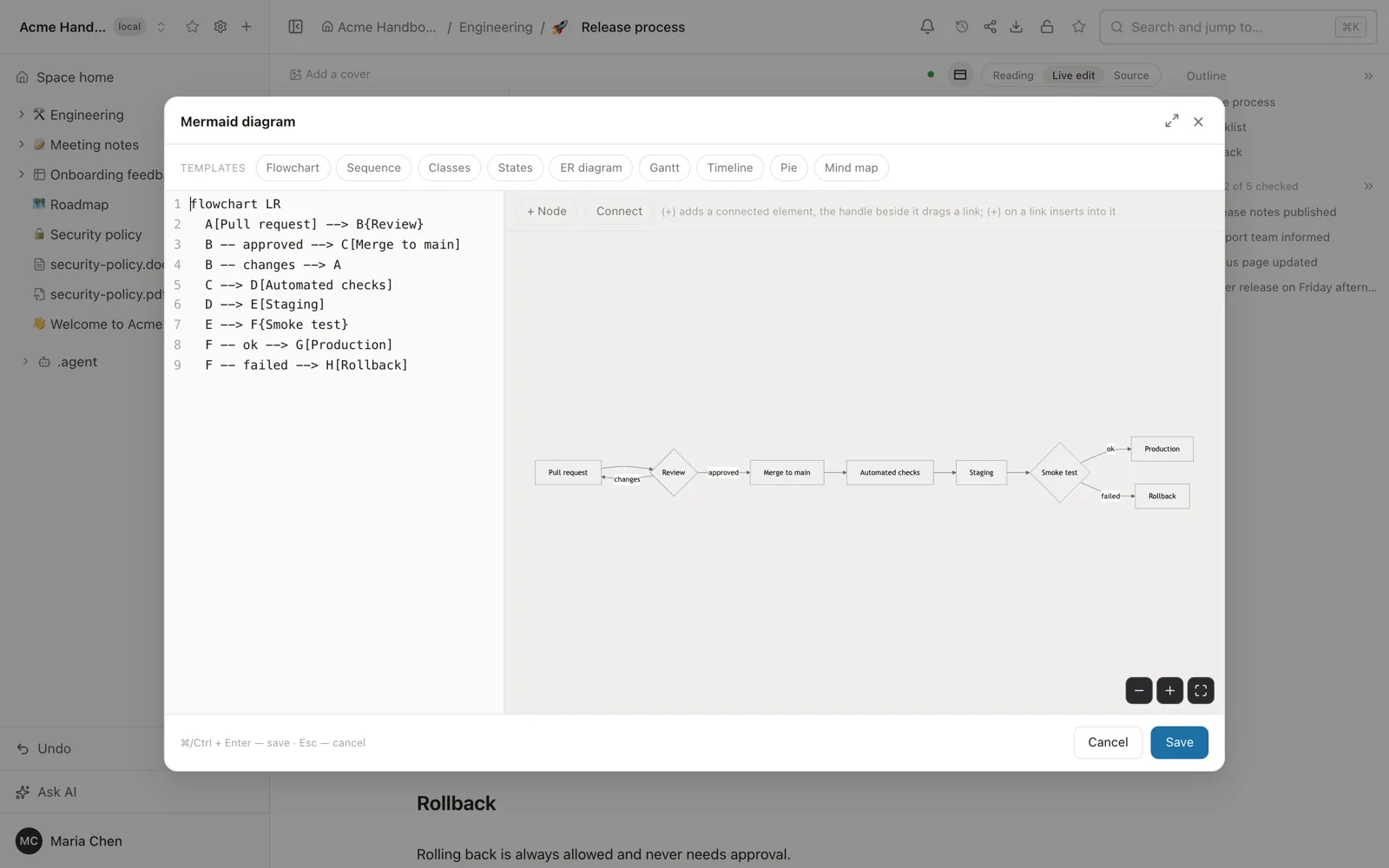
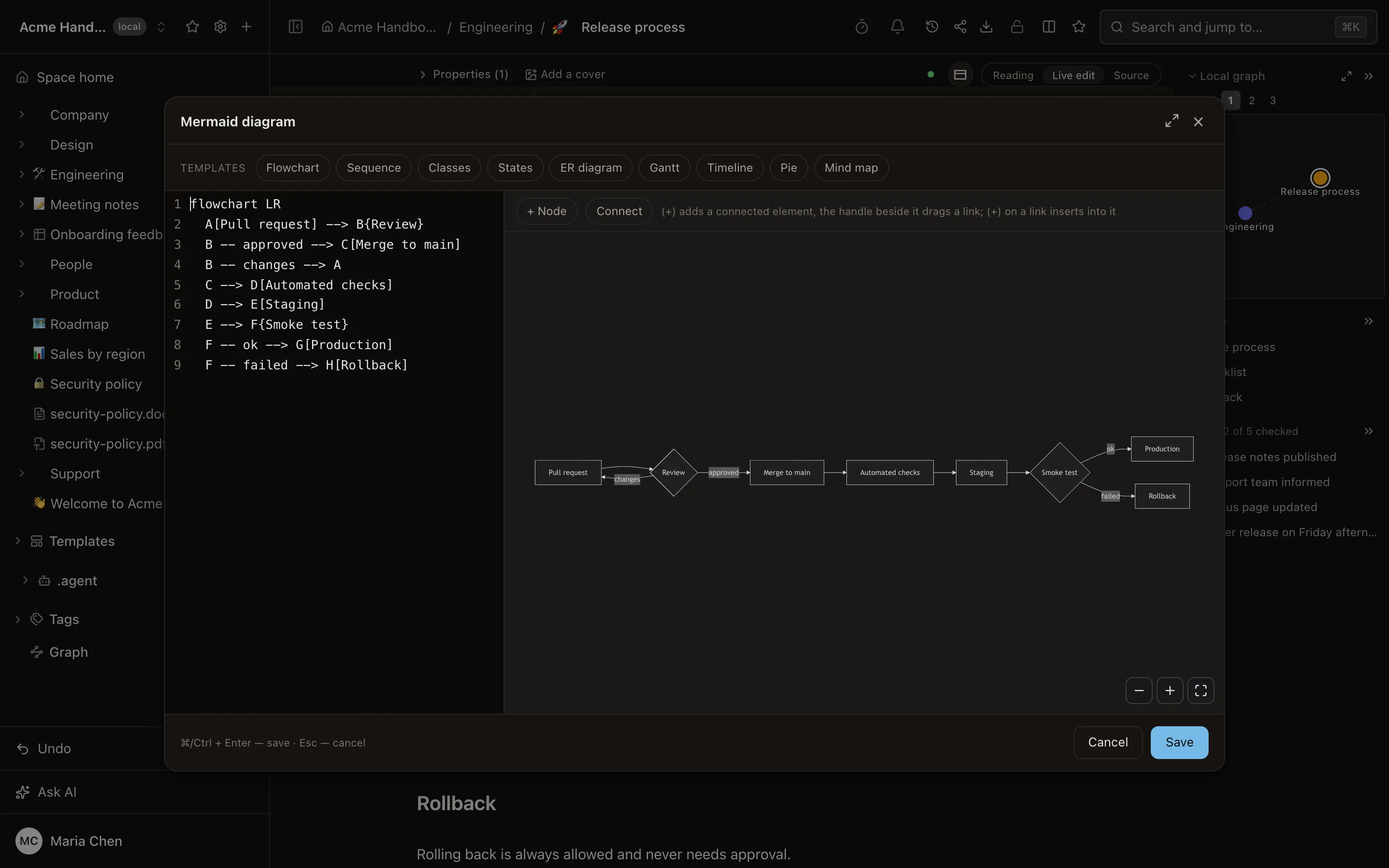
Mermaid diagrams come with a visual editor. You build the diagram on a canvas and Folio writes the code, or you type the code and the canvas follows.

  • Nine diagram types from templates: flowchart, sequence, classes, states, ER, Gantt, timeline, pie, mind map.
  • Code and canvas side by side, full screen when you need room.
  • Still plain Markdown: stored as an ordinary mermaid code block, so GitHub and GitLab render it too.
The visual Mermaid diagram editor
Canvas and Mermaid code side by side

Files

Keep the rest of your files in view.

PDFs, Office files and agent-built pages live in the wiki, under the same access rights.

Files are pages too

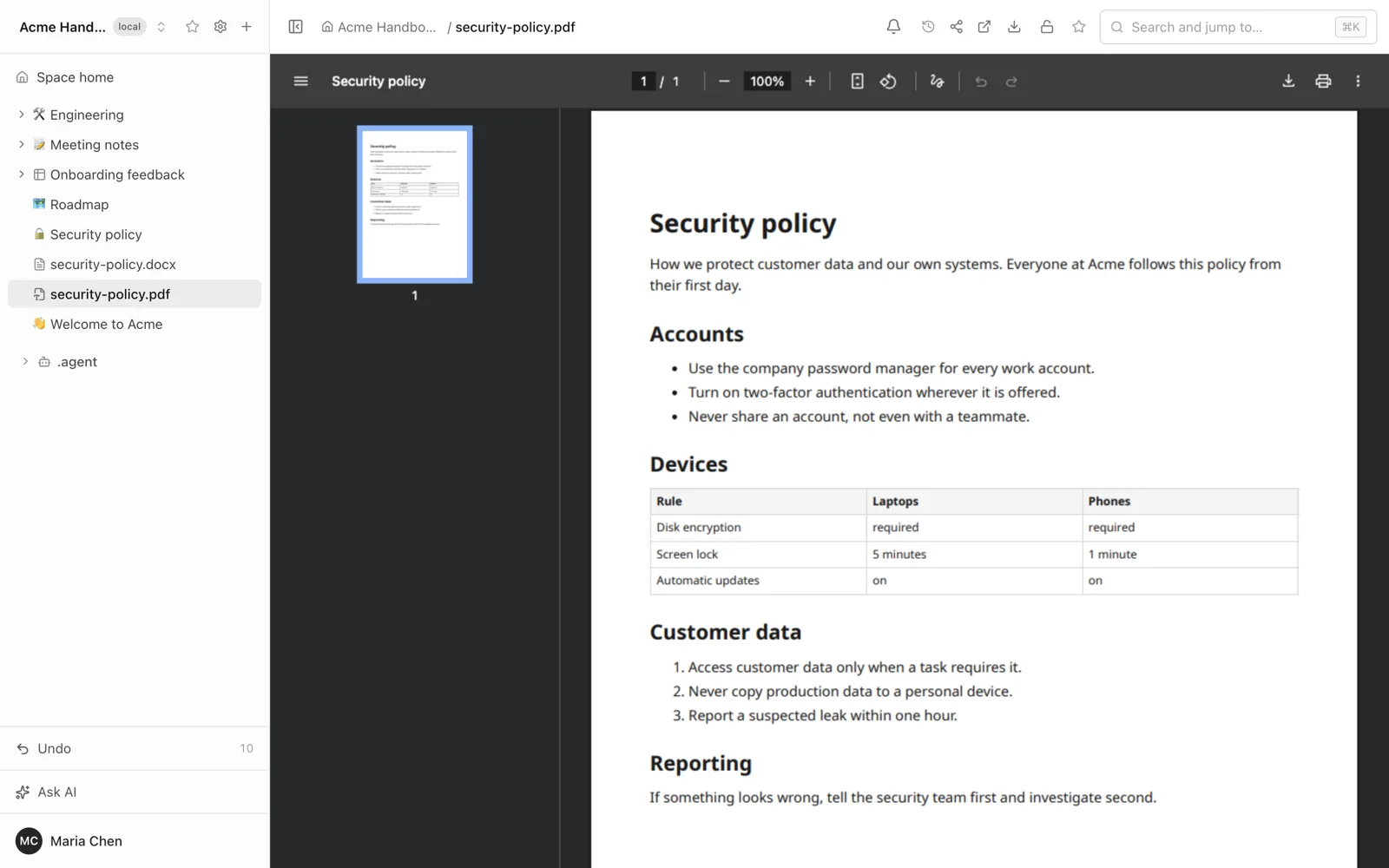
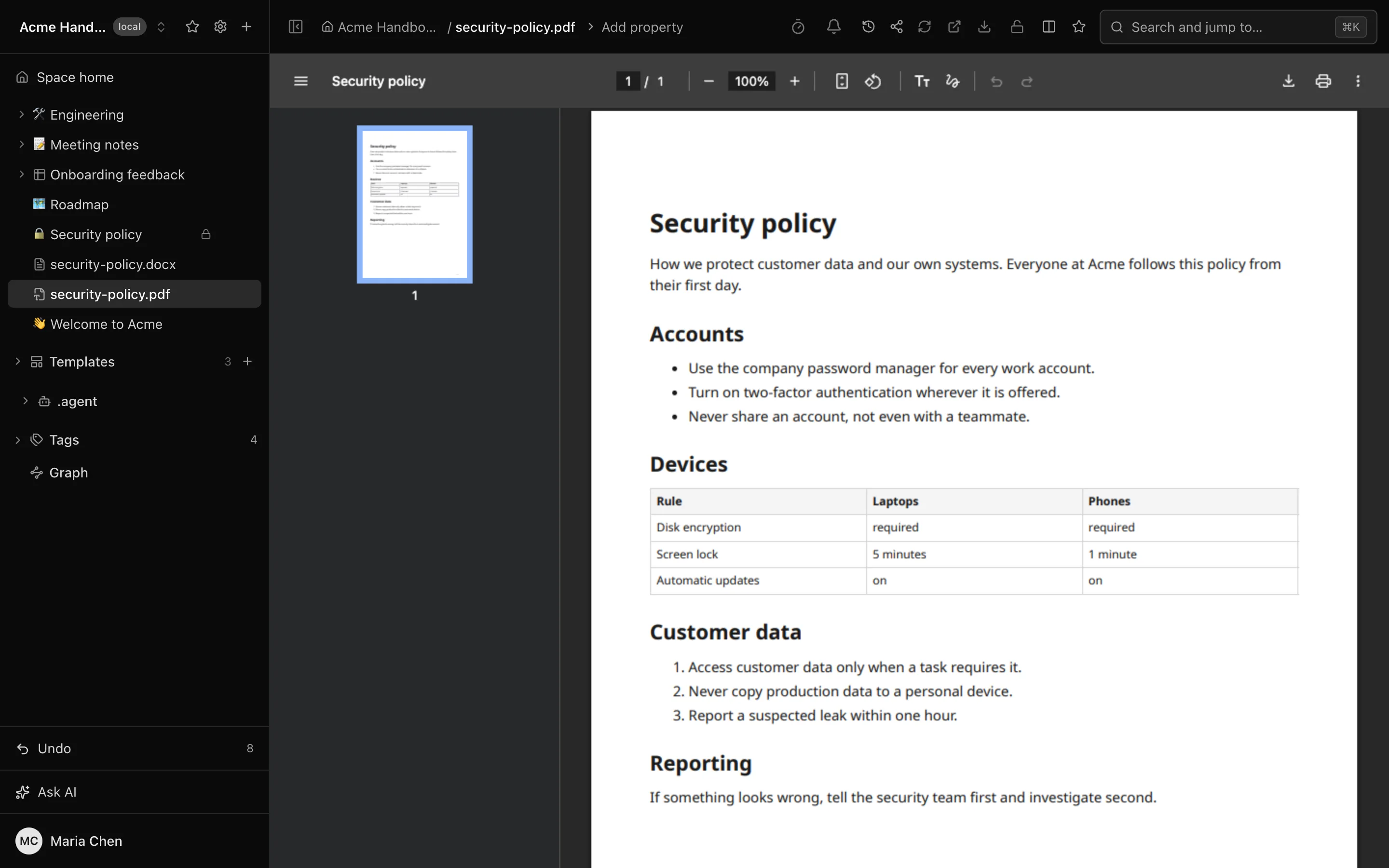
PDF, Word, Excel and PowerPoint files open right inside Folio: no download, no other application, no conversion on the server. The file sits in the space's Git repository next to the pages about it, under the same access rights. Folio never rewrites your file.

  • Opens in the browser, no download needed.
  • Same access rights as the pages around it.

View only. These files are not edited in Folio, and search finds them by title.

A PDF opened inside Folio
A PDF open inside the space

Artifacts from your AI agents

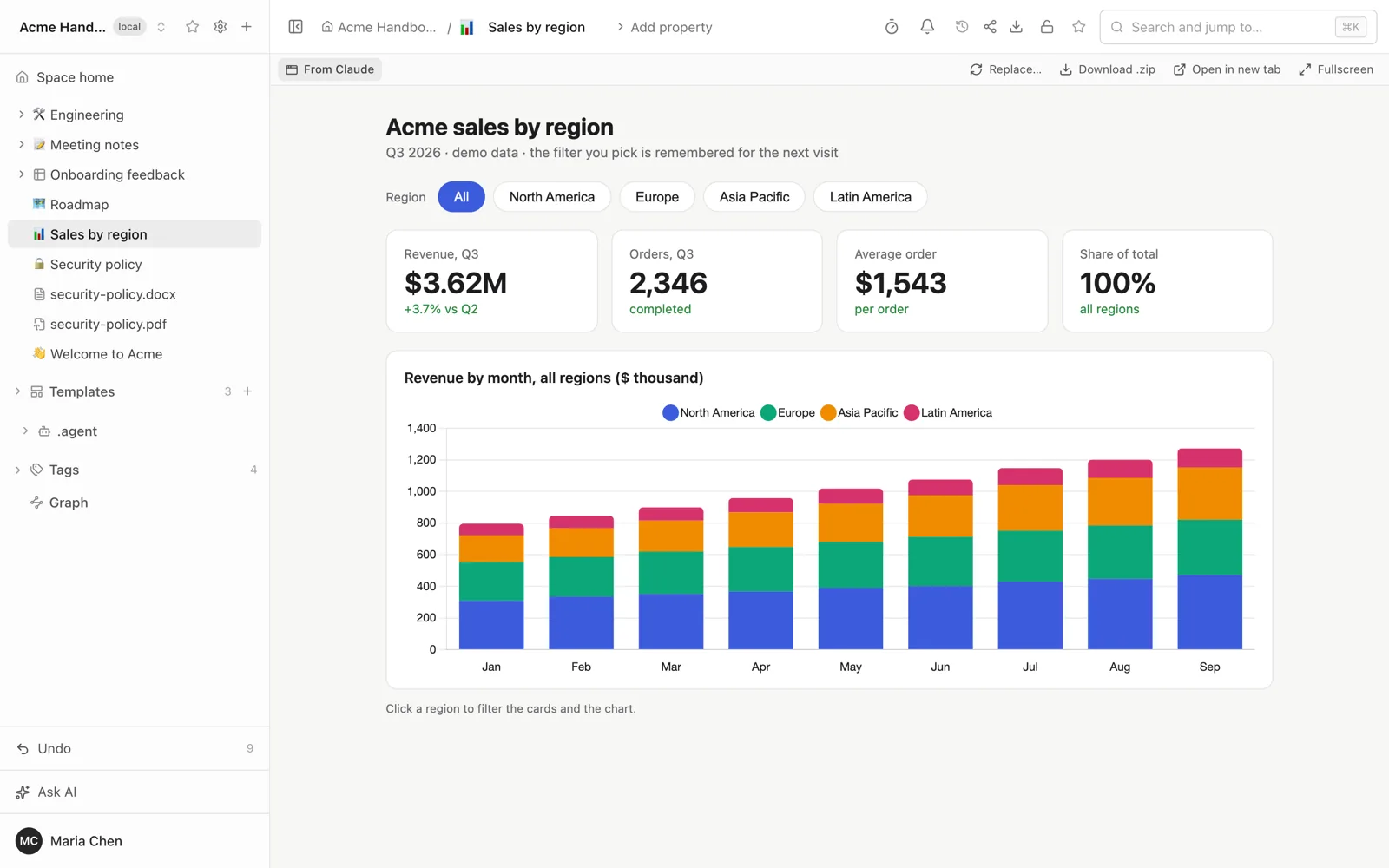
The dashboard, calculator or checklist that Claude or Cursor built no longer stays in one chat. Tell the agent to publish it to Folio and it becomes a page of your wiki: in the tree, in search and in Git, under the same access rights.

  • Interactive, not a screenshot: filters, tabs and charts work, and each reader's choices survive a reload.
  • Agents publish over MCP with publish_artifact; people can paste HTML or upload an .html, .zip, .svg or .md file.
  • Stored as a <name>.artifact/ folder in the space's repository: page, manifest, source and assets.
  • Runs in a sandboxed frame with no access to your Folio session or API.

Folio shows the finished page and does not build React itself. Calls to Claude or your own APIs do not work inside an artifact.

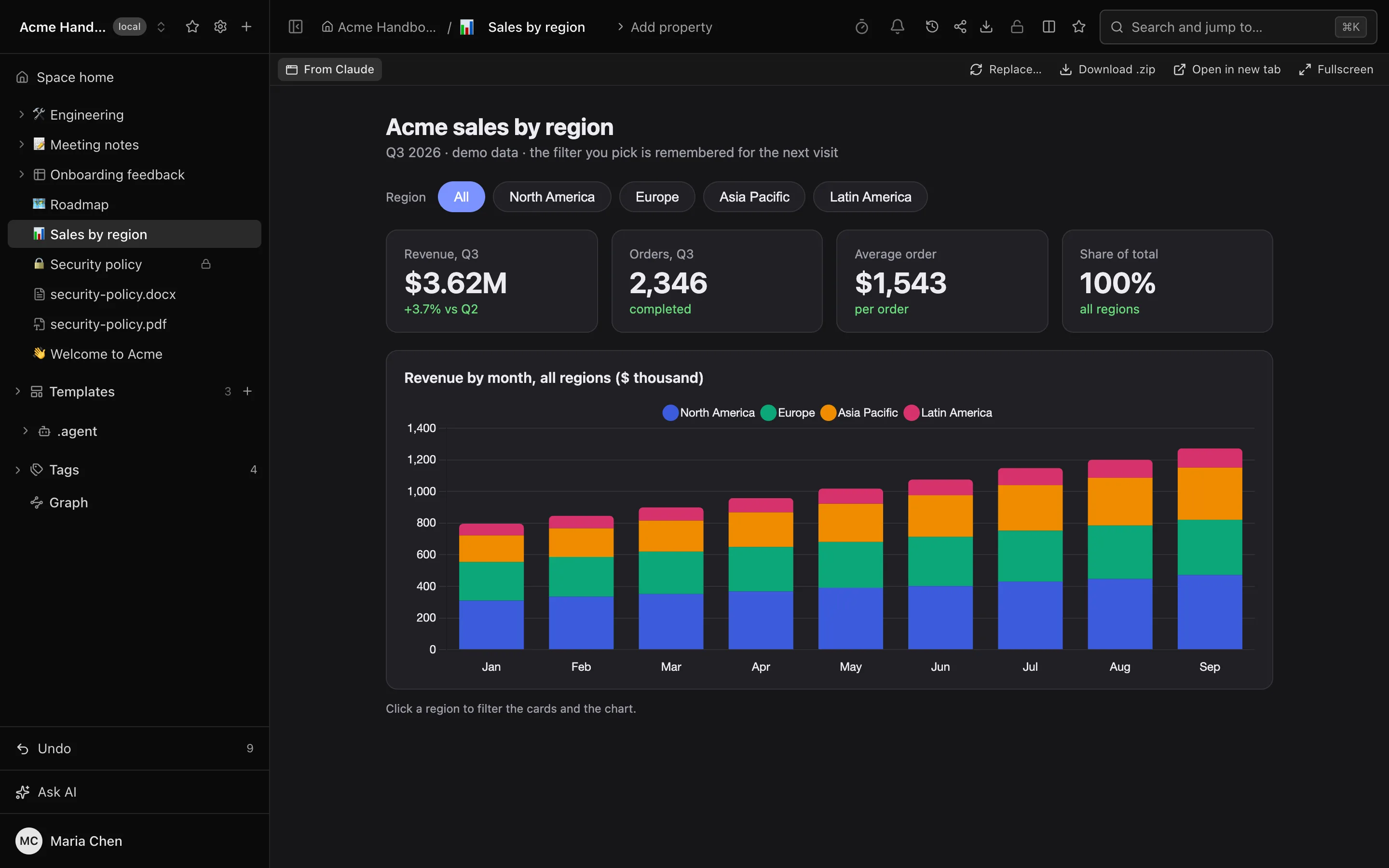
An AI-built dashboard published as a page
A dashboard built by an agent, published as a page

That is writing, data, drawing and files. Next: how agents work with the same pages.

Next: AI and agents

AI and agents

Agents work on the same pages as people

A built-in assistant on every page, your own agent in every space, and a standard plug for outside agents, all inside the same rights.

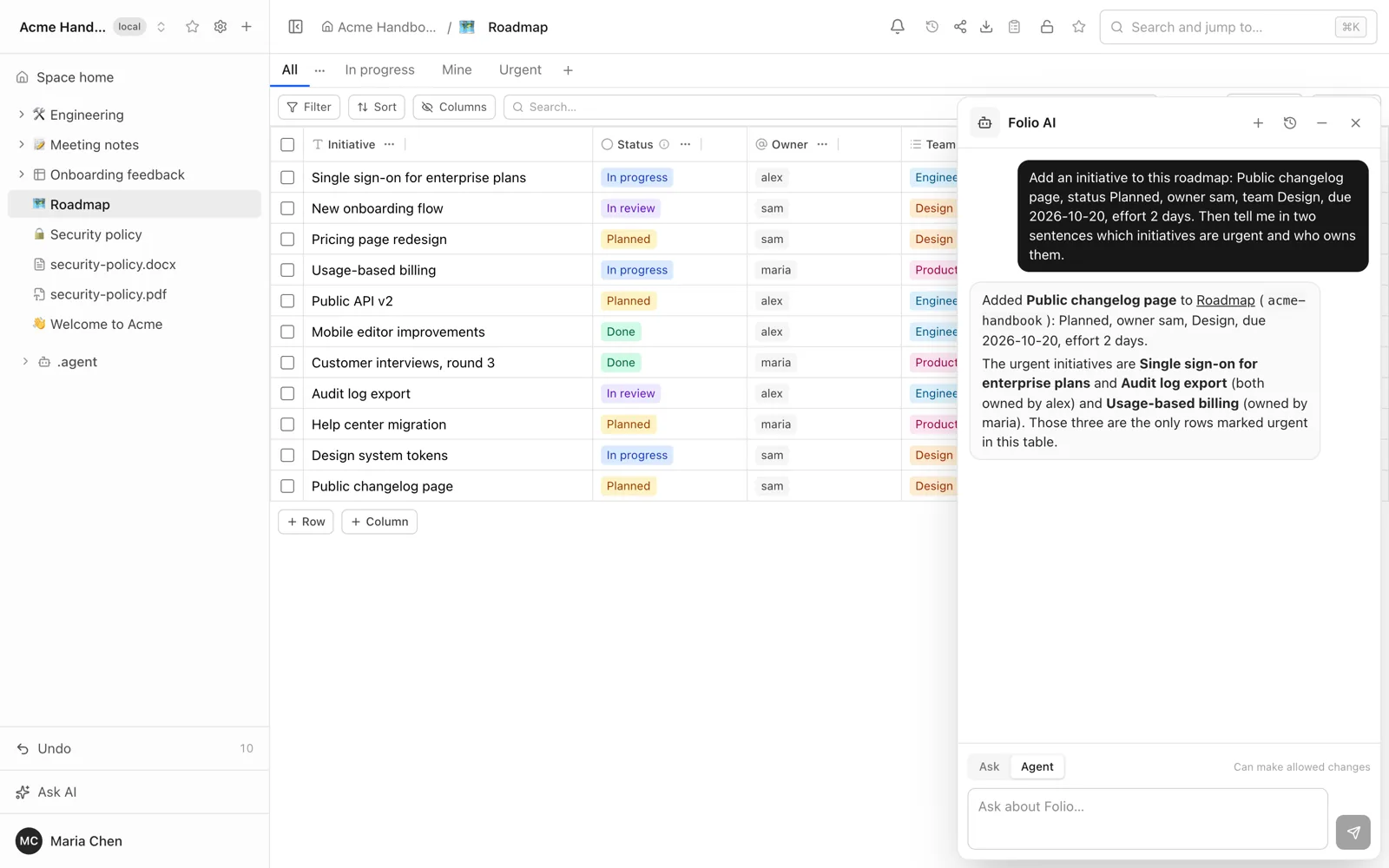
Folio AI: an assistant that works inside the wiki

Ask mode only reads: it finds, summarizes and compares across the pages you can open. Agent mode also writes: it drafts a page, updates a table or draws a board. Both stay inside your rights, and in Ask mode the write tools are switched off on the server.

  • Runs on the server, so closing the browser does not stop the work.
  • Uses the same tools an outside agent gets over MCP.
  • Bring your own key: Cursor, or a Claude API key billed by usage. Folio does not resell or mark up AI.
  • A key can be personal, shared for one space or for the whole instance.

The assistant sends the pages it works with to the provider whose key you use. A Claude subscription cannot be used, only an API key. Without a key everything else in Folio works as usual.

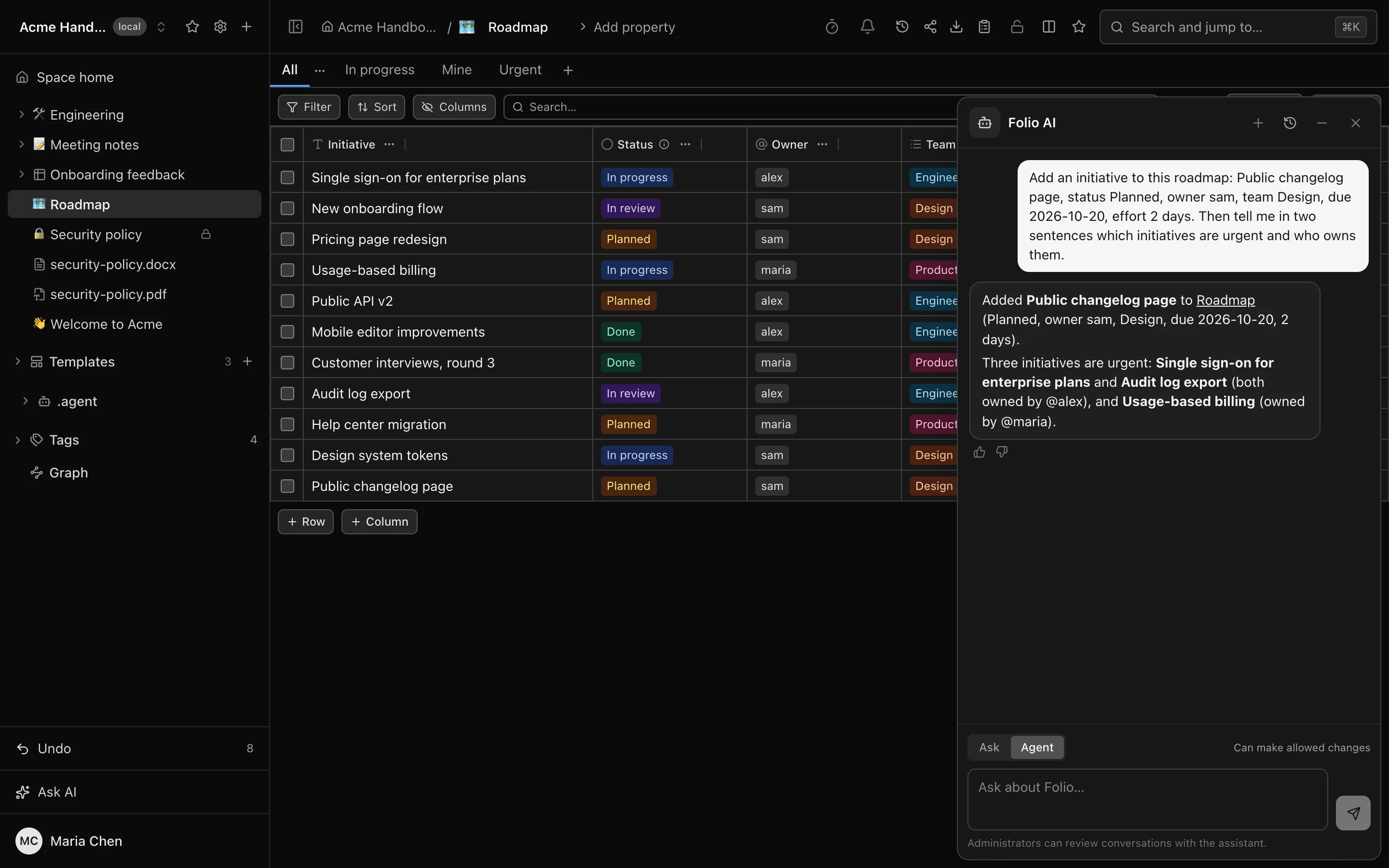
Folio AI panel answering a question on a wiki page
Folio AI answering on a page

.agent: your own agent in every space

Every space has a .agent folder. What you put there becomes the assistant's instructions for that space, written as ordinary Folio pages, not as configuration.

  • Build an agent by writing pages: its role, tone, glossary and rules.
  • A different agent for every team: support answers like support, engineering knows the release process.
  • Versioned like everything else: see who changed the agent's behavior, review it, roll it back.
  • Only space administrators see and edit .agent.

One agent per space.

A space, as files
  • acme-support/
  • index.md
  • faq.md
  • .agent/
  • role.md
  • tone.md
  • glossary.md
  • rules.md
  • refunds.md
  • escalation.md

Four ordinary pages in .agent/ become the assistant's instructions for this space.

MCP: any AI tool can work with your wiki

MCP is a standard plug for AI tools. Connect an agent once and it can search spaces, read and write pages, edit boards, forms and tables, publish artifacts and answer comments, with a personal access token or OAuth.

  • A page tagged skill is offered to every connected agent as a team skill.
  • A space can send agent edits to a review queue instead of applying them at once.
  • Safe by design: a token never has more rights than its owner, a read token cannot write.

Through MCP you cannot manage access rights or rename and delete spaces. Those actions go through the interface only.

Five of the tools an agent gets

  • read_pageAnswer from your team's own pages, with sources.
  • create_pageDraft the release notes, the runbook, the spec.
  • folio_table_insertAdd a row to the roadmap.
  • create_boardDraw the architecture as a whiteboard.
  • publish_artifactTurn a dashboard into a page of the wiki.

52 tools in all, with the rights of the person who connected the agent.

Under the hood

Your content stays yours

Plain files, full history, clear access, and it keeps working when the network does not.

Nothing is locked in: every page is a file you own

Folio keeps each page as a plain file in a Git repository you control. Stop using Folio tomorrow and the files are still there, readable in any editor. Git is the standard tool developers use to keep versions of files.

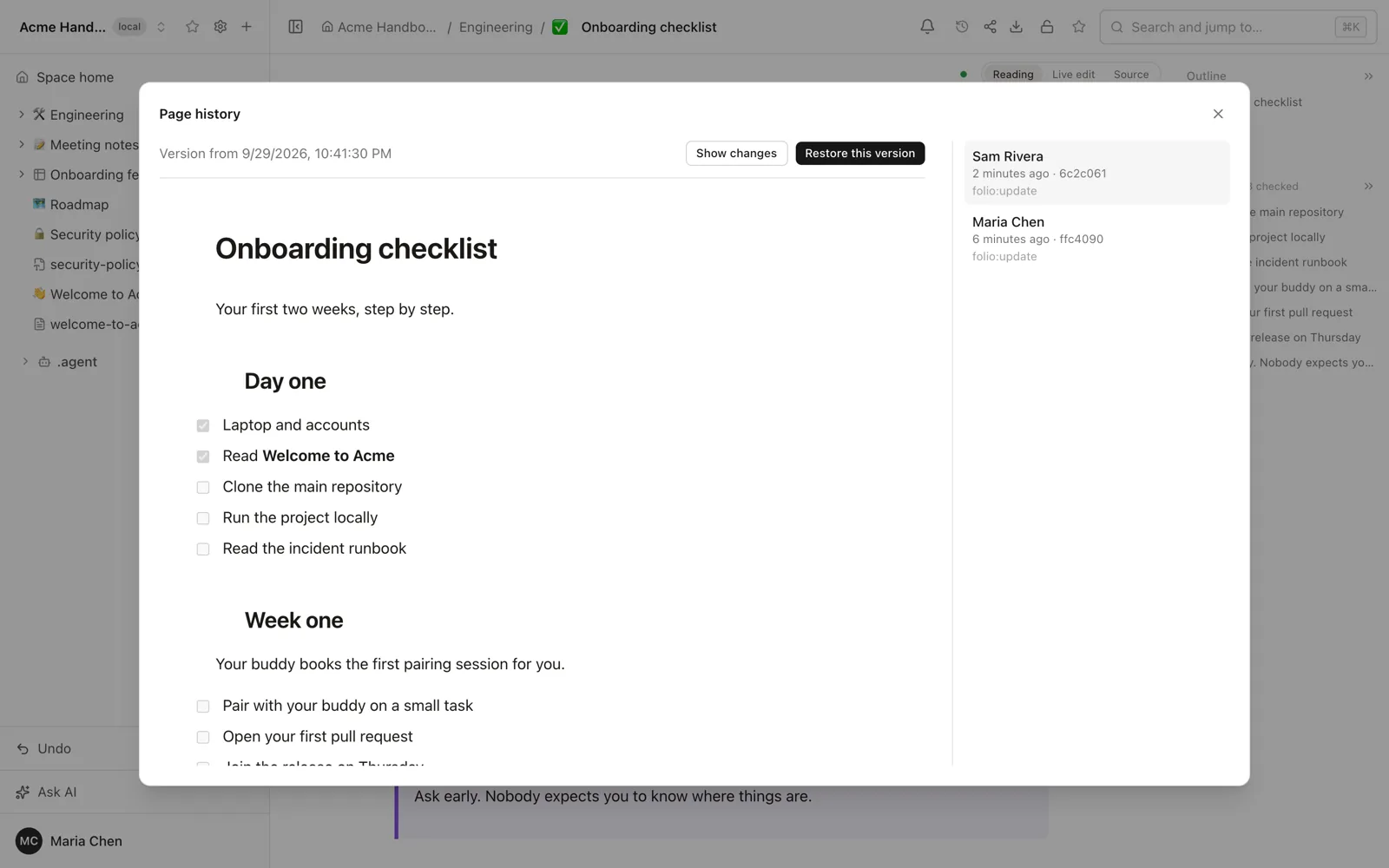
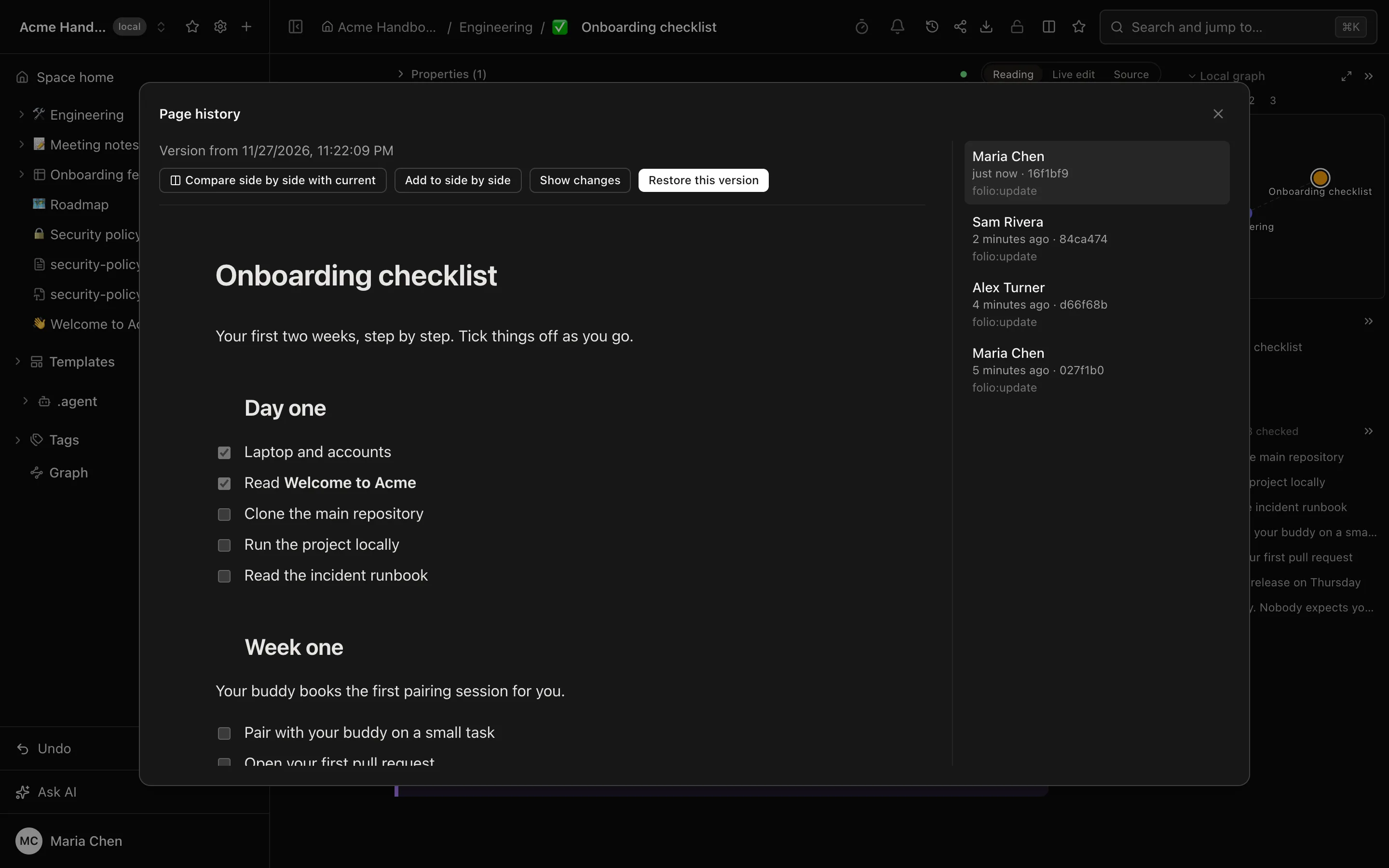
  • Full history, with the person who edited as the author of each change.
  • Edit in the browser or in your IDE and push: both land in the same history.
  • Review and revert like code: merge requests, diff, blame.
  • Bring your own repository, or let several spaces share one next to the code.
  • Sync state is always visible: clean, ahead, behind, conflict.

The commit is made after about 90 seconds of quiet, or right away with the Sync action. Right after saving, the history may still be empty.

Page history listing authors and commits
Page history, with authors and commits

Who sees what, decided in one place

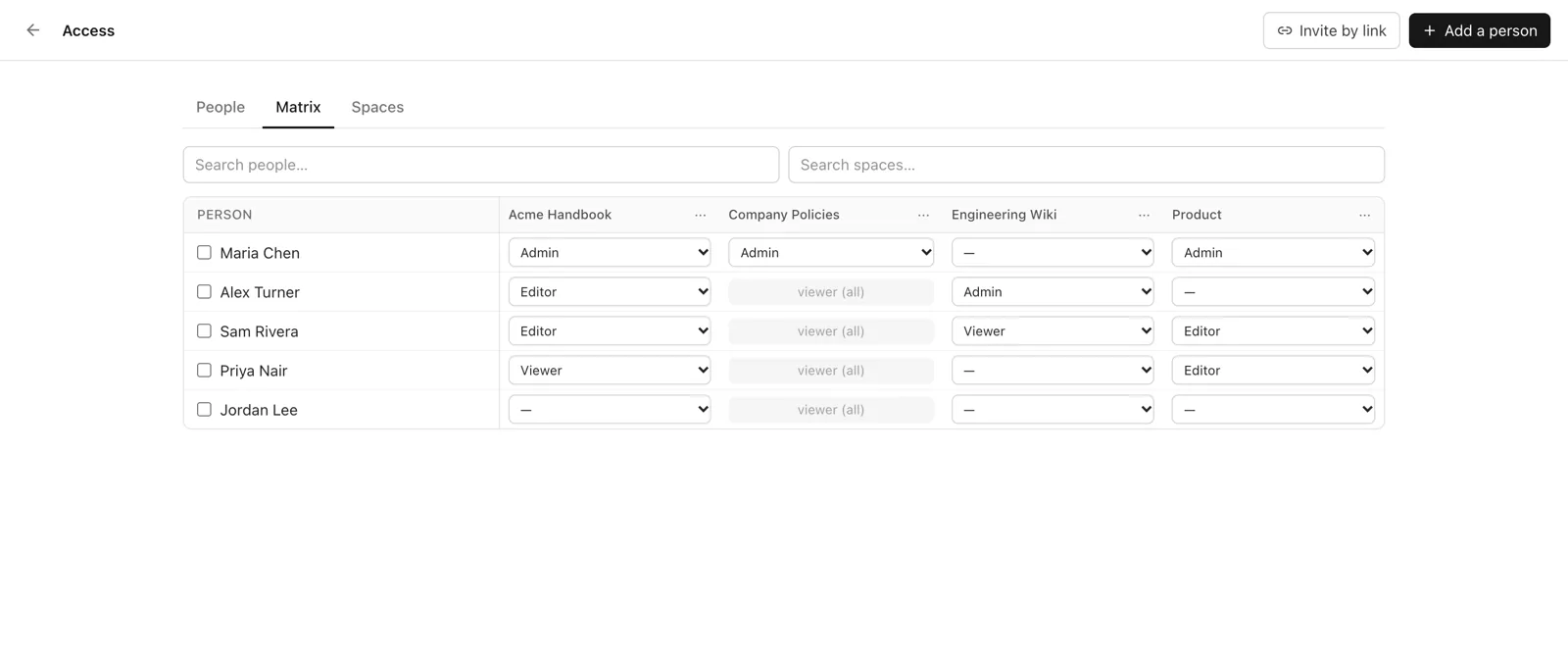
Roles per space and rights per page, all readable at a glance. Groups can follow your identity provider, and every grant leaves a trace.

  • Roles per space: administrator, editor, viewer. Spaces are private, open to everyone signed in, or public.
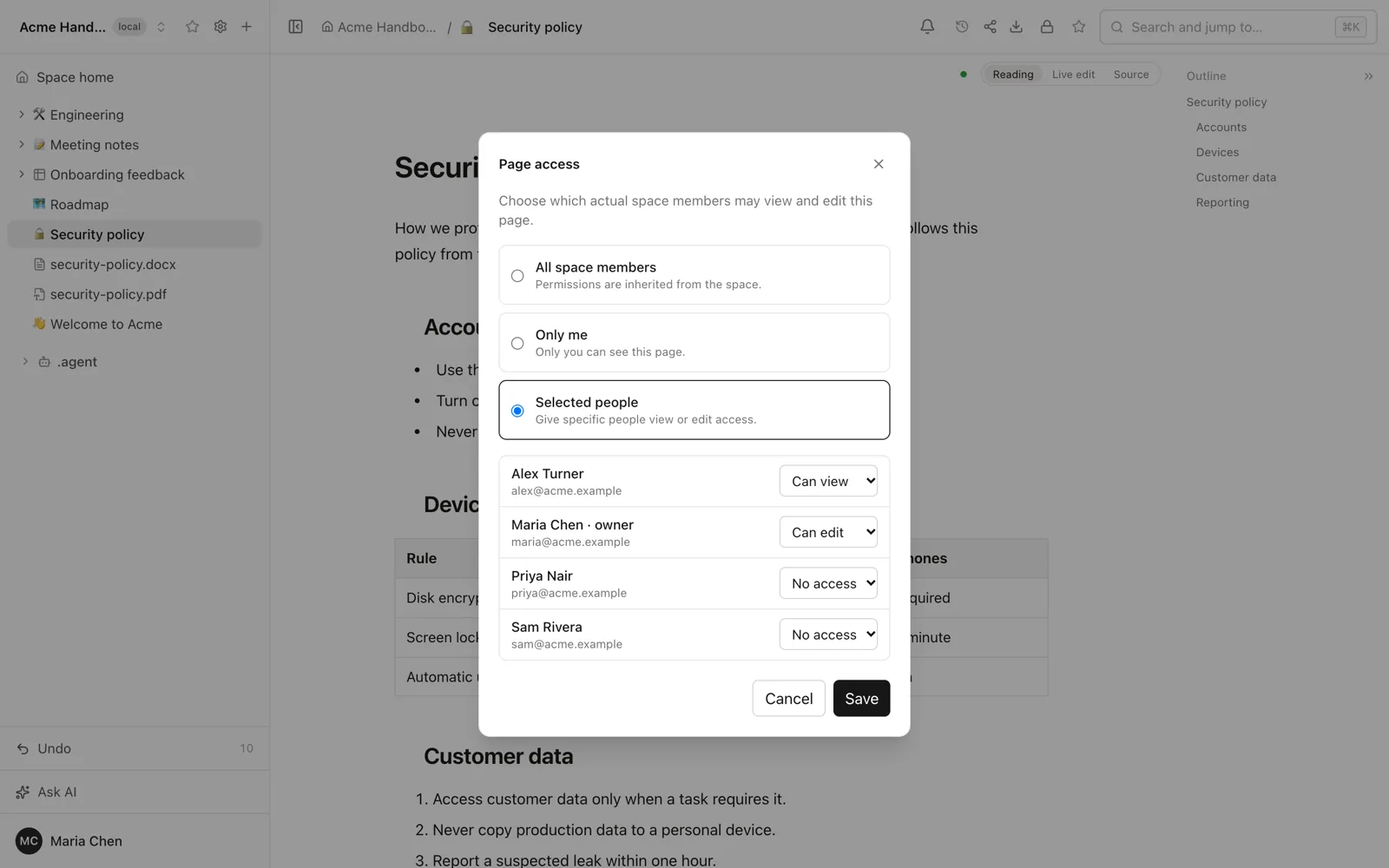
  • Page restrictions are inherited by child pages; a child can narrow them, not widen them.
  • Groups by hand, or synced from your identity provider at sign-in or through SCIM 2.0.
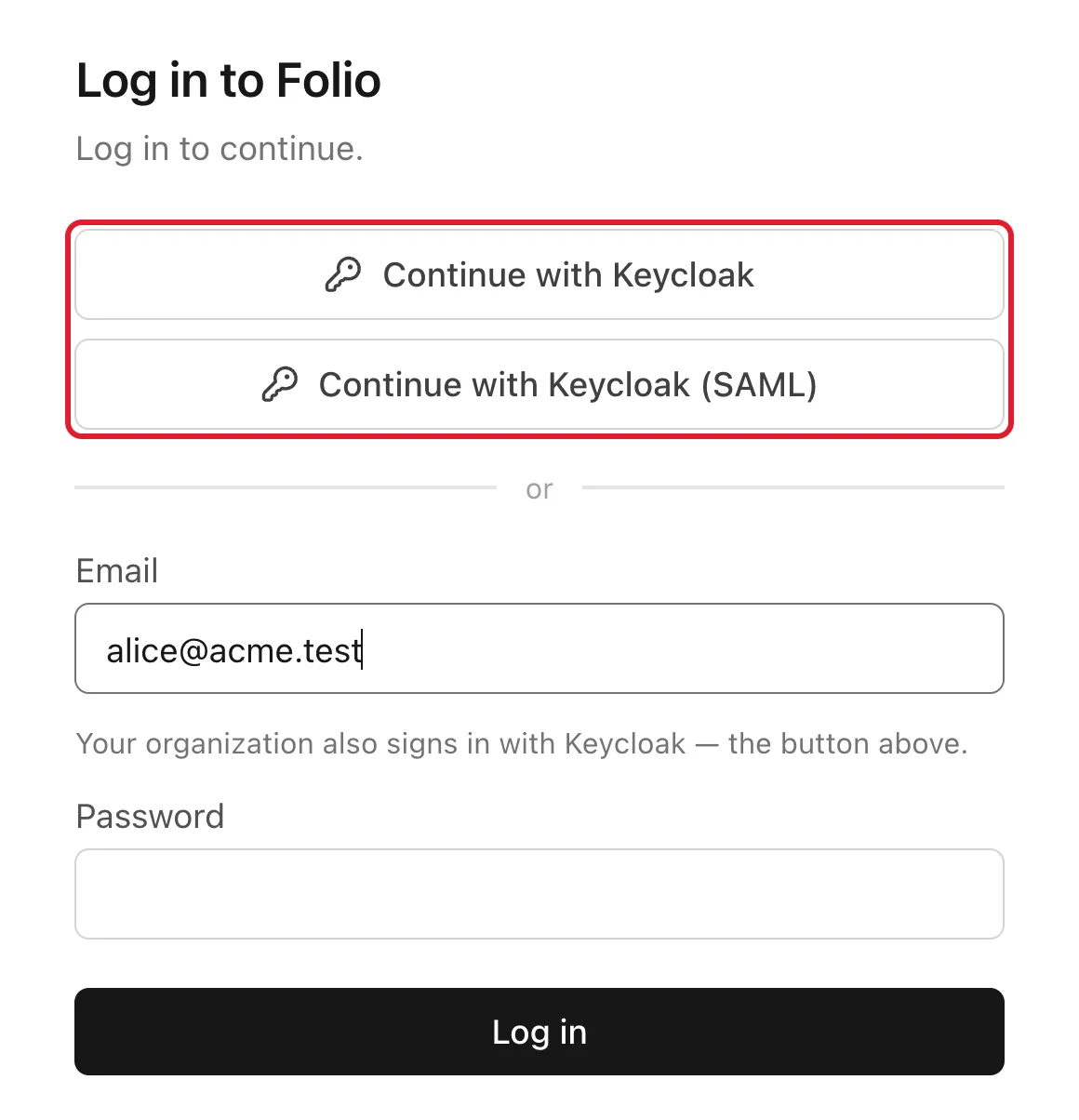
  • Sign-in with email, Google, OpenID Connect or SAML 2.0; SSO can be enforced per email domain.
  • Audit log with CSV export. The instance administrator does not automatically read private spaces.

SSO, SCIM, groups and the audit log are in the one MIT edition. There is no paid tier. Groups cannot be nested.

Space access settings with roles and members
Space access: roles, groups, matrix
Access restrictions of a single page
Restrictions on one page
Sign-in screen offering single sign-on
SSO

Keep writing without a connection

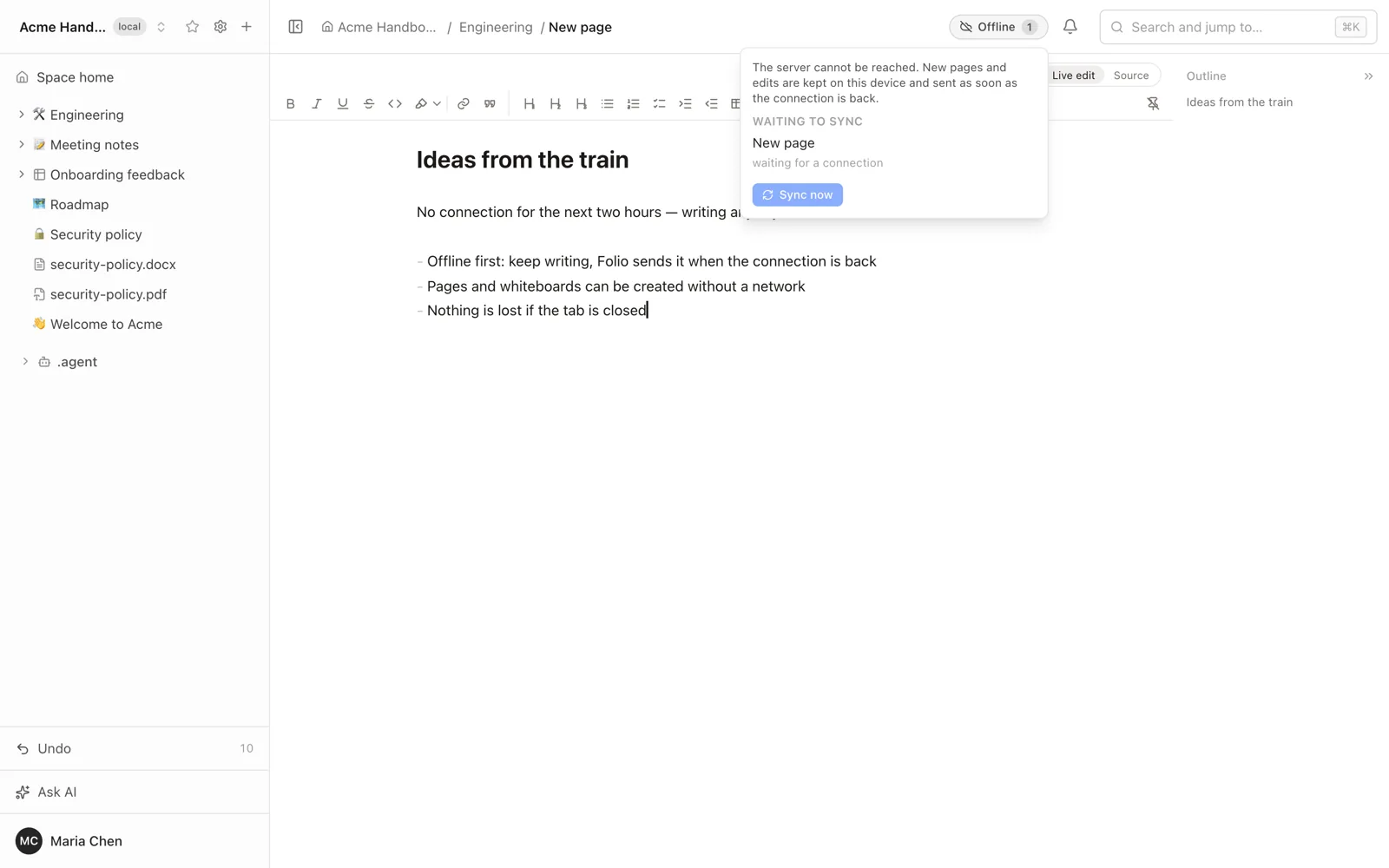
On a train, on a plane, on bad hotel Wi-Fi: pages and whiteboards you have opened stay editable. Everything is kept on the device and reaches the server by itself when the connection returns, at the same address, with no duplicates.

  • New pages and whiteboards can be created offline.
  • An indicator in the header shows what is waiting to be sent.
  • Install Folio as an app from the browser, or save a document for read-only offline reading.

Data tables, forms and file uploads need a connection. In saved copies, attachments and embeds need one too.

The editor working offline with a pending-changes indicator
The editor, offline