Make Obsidian multiplayer with Folio
Updated · Sergii Kravtsov · Folio
Obsidian is a single-player tool. A vault is a folder on your disk, and the way to share it is Obsidian Sync, with a paid plan for each person. This guide takes the other route: put the vault in Git, open it in Folio, and your colleagues read and edit the same notes in a browser, with live cursors, roles and rights per page. You keep Obsidian for yourself, and every change lands in the repository as an ordinary commit.
Prefer to watch first? The whole flow in 1 minute 43 seconds: Make Obsidian multiplayer with Folio (in Ukrainian: youtu.be/5aL6I57P2UE).
You need a Folio server (the install guide has ten ways to run one, and the public demo shows the screens), a Git host, and a vault. Allow about half an hour. If you are still deciding between the two tools, Folio vs. Obsidian has the comparison, and the post on opening a vault has how we tested it.
1. Put the vault in a Git repository
Folio reads the vault from a Git repository, so the repository is the thing both sides share. If your vault is not in Git yet, open a terminal in the vault folder.
git init -b main
Create a .gitignore first. Obsidian rewrites its workspace files every time anyone opens a note, so two people would conflict on them all day. Leave them out, and leave out the trash and the cache.
.obsidian/workspace.json
.obsidian/workspace-mobile.json
.obsidian/cache
.trash/
.DS_Store
Whether to commit the rest of the .obsidian folder is your call. Committing it shares hotkeys, appearance and installed plugins between your own machines. Folio never shows or edits that folder, but it does read the property types from its types file when it is there, so a list stays a list and a date stays a date. If you would rather share nothing, add the whole .obsidian/ folder to .gitignore: Folio connects such a vault the same way.
git add .
git commit -m "Add the vault"
git remote add origin git@github.com:your-team/team-vault.git
git push -u origin main
Use a private repository on GitHub, GitLab or a Git server of your own. Folio has saved tokens for GitHub and GitLab; for other hosts we do not document the setup yet. Two optional habits help. Keep large videos and archives out of the repository, because every clone carries them. And in Obsidian's Settings, Files and links, you can turn off "Use [[Wikilinks]]", so new links are written as Markdown links that GitHub also understands. Folio reads wikilinks either way and never writes them.
2. Connect the repository to Folio
Folio needs the right to read and write the repository. Open the user menu, then Git access, and either connect your GitHub account (when your administrator has set up the GitHub connection) or paste a token with read and write access to the repository's contents. The people you invite later need no Git account: Folio pushes with the token saved for the space.
Then choose New space, the "From a git repository" tab, and enter the address and the branch. When the repository holds an .obsidian folder, the dialog says it found a vault.
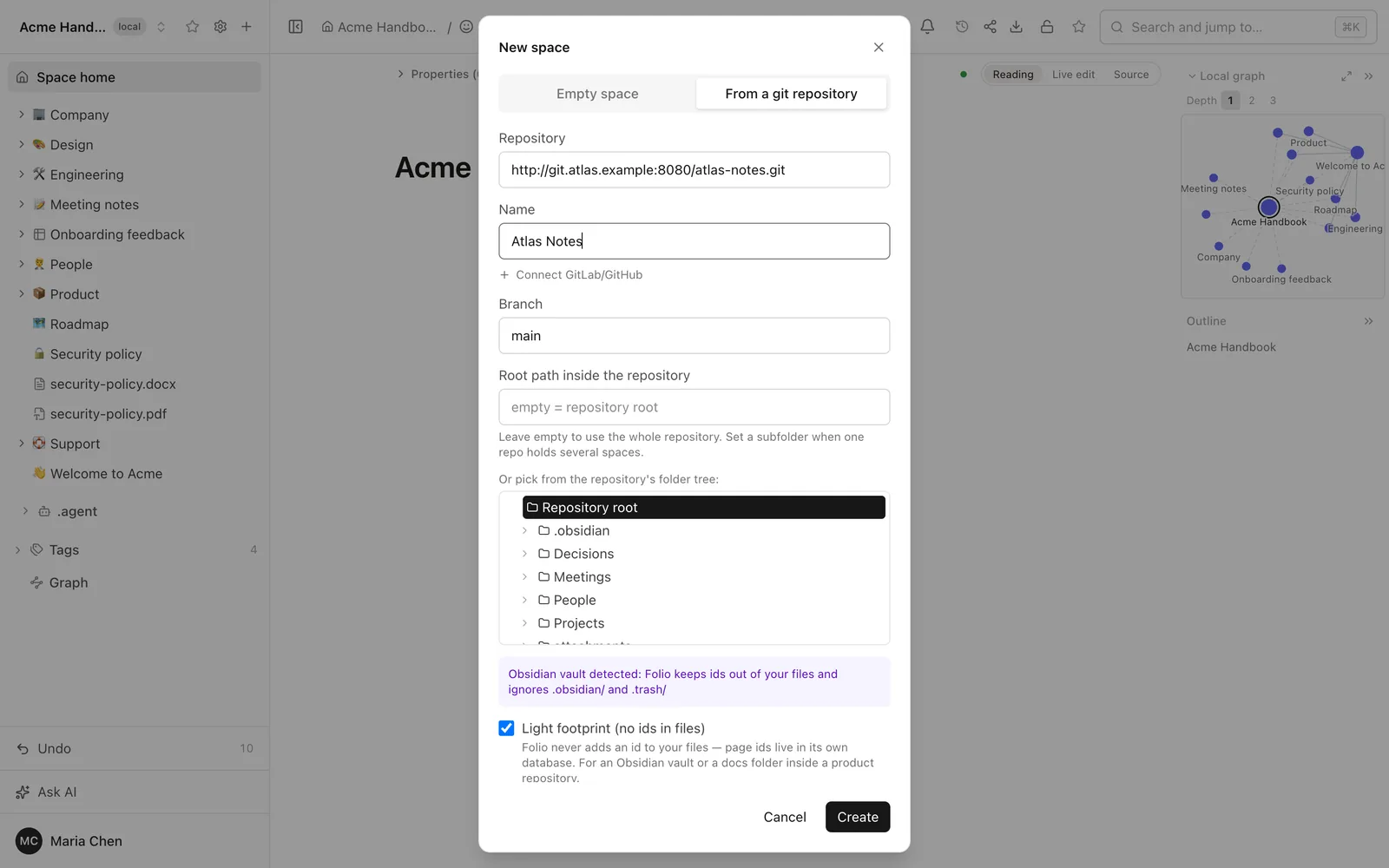
A vault connects with a light footprint, and that is the point of this step. Folio writes no id into any note and keeps its bookkeeping in one hidden file at the root, committed once. After the scan, git status is clean. A copy of the vault is the safest first try, and you can also pick a folder inside the repository as the root of the space.
Pages appear with wikilinks, embeds, callouts and tags drawn as Obsidian draws them. The sidebar gets a tag tree and a graph, and canvas and base files open as pages.
3. Invite people and set roles
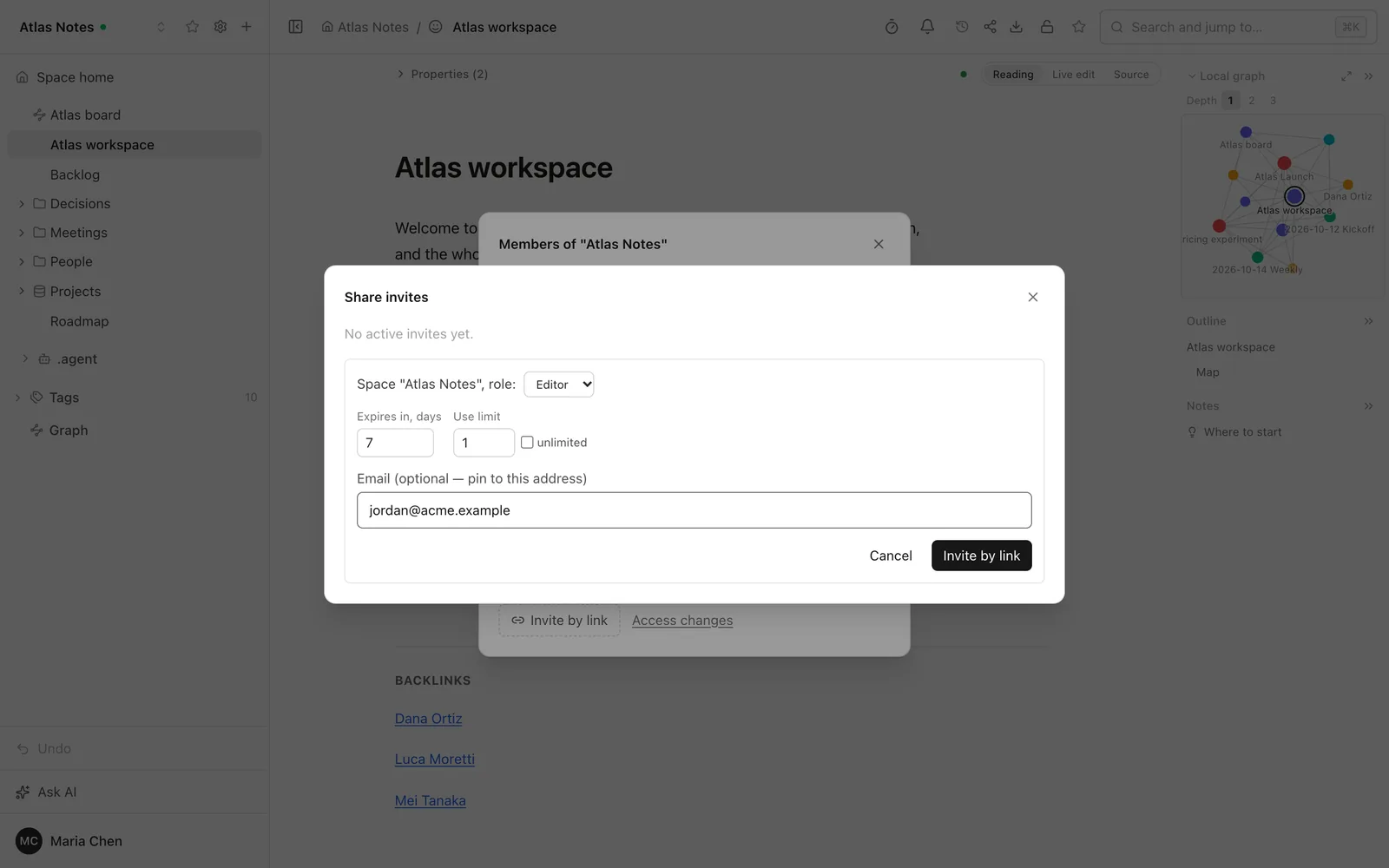
Roles belong to the space: admin, editor or viewer. An invitation is a link with a preset role, an expiry date and a usage limit, optionally pinned to one email address, so you can send an editor link to the team and a viewer link to a client. A space can be private (members only) or open to everyone on the instance. Rights on a single page can be narrower than the role in the space: a page with its own restriction stays closed to people the space would otherwise let in, and the graph, search, bases and agents never show it to them.
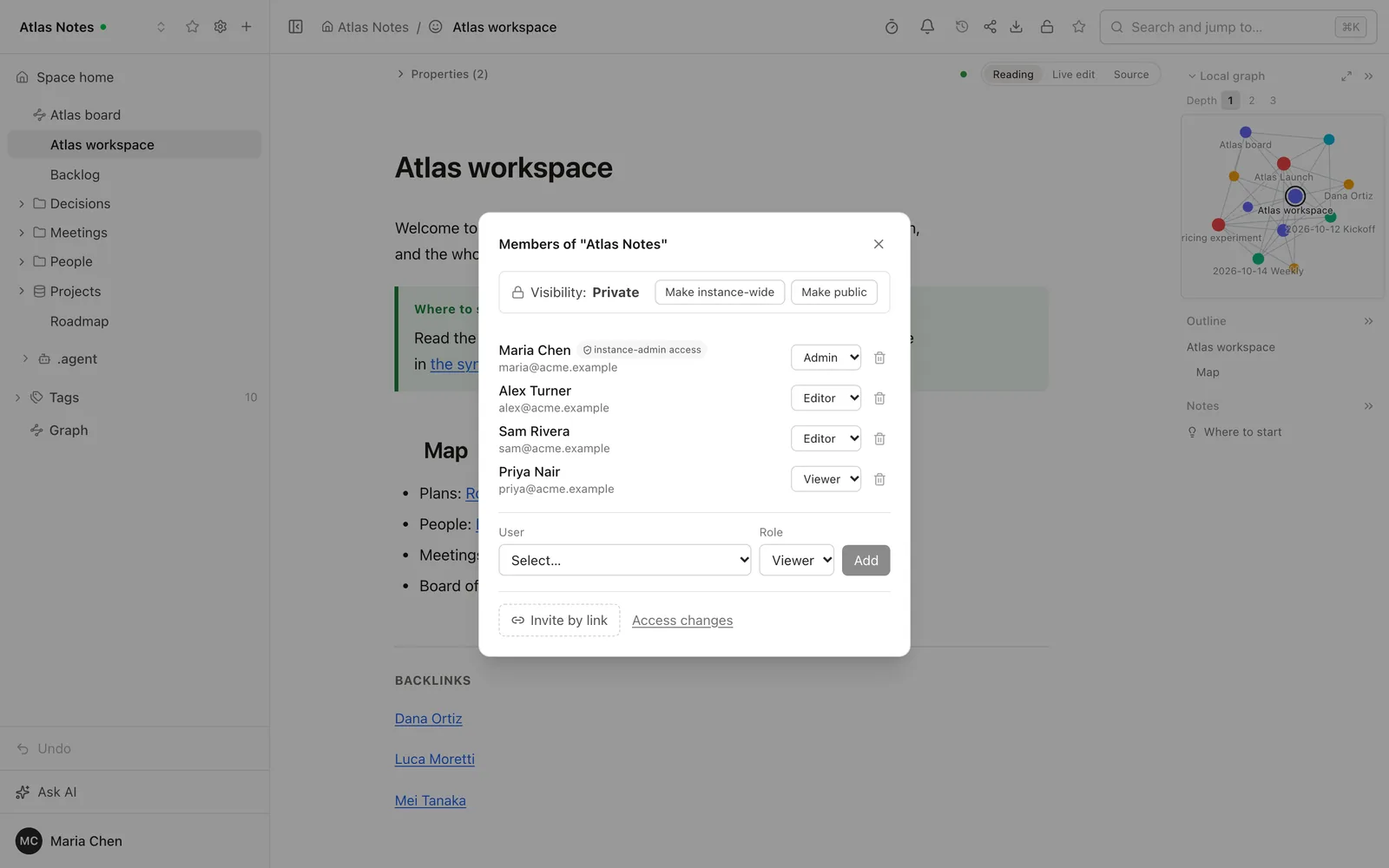
The instance administrator does not see the content of spaces they are not a member of. This is the reverse of a shared Obsidian Sync vault, where every collaborator has the owner's permissions.
4. Edit together in the browser
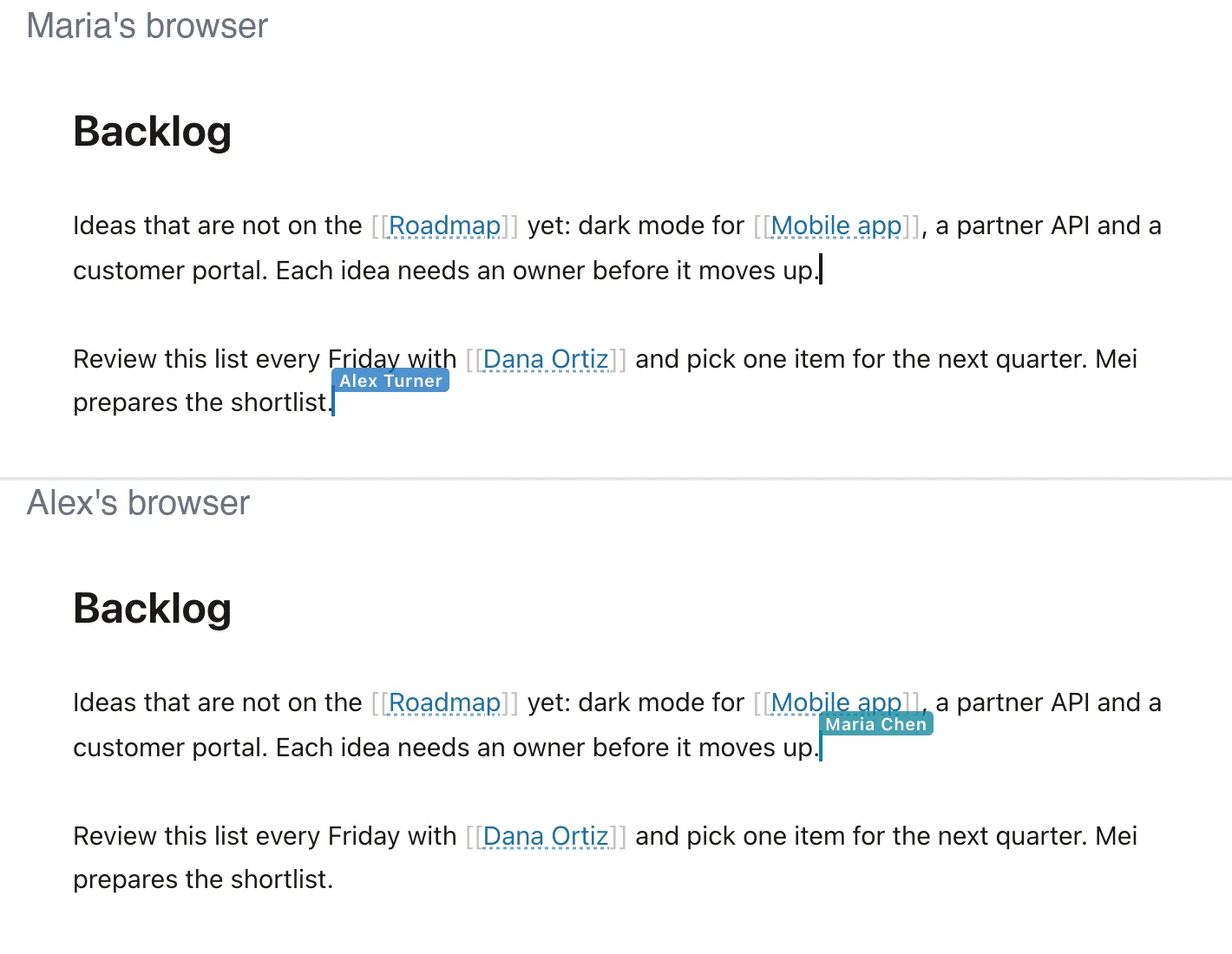
A colleague opens a page in Reading, Live or Source mode, and two people in one page see each other's cursors. Properties have a panel with types, tags are chips with a tree in the sidebar and a bulk rename, backlinks show the line each link sits on, and a page restricted to a few people stays closed to the rest.
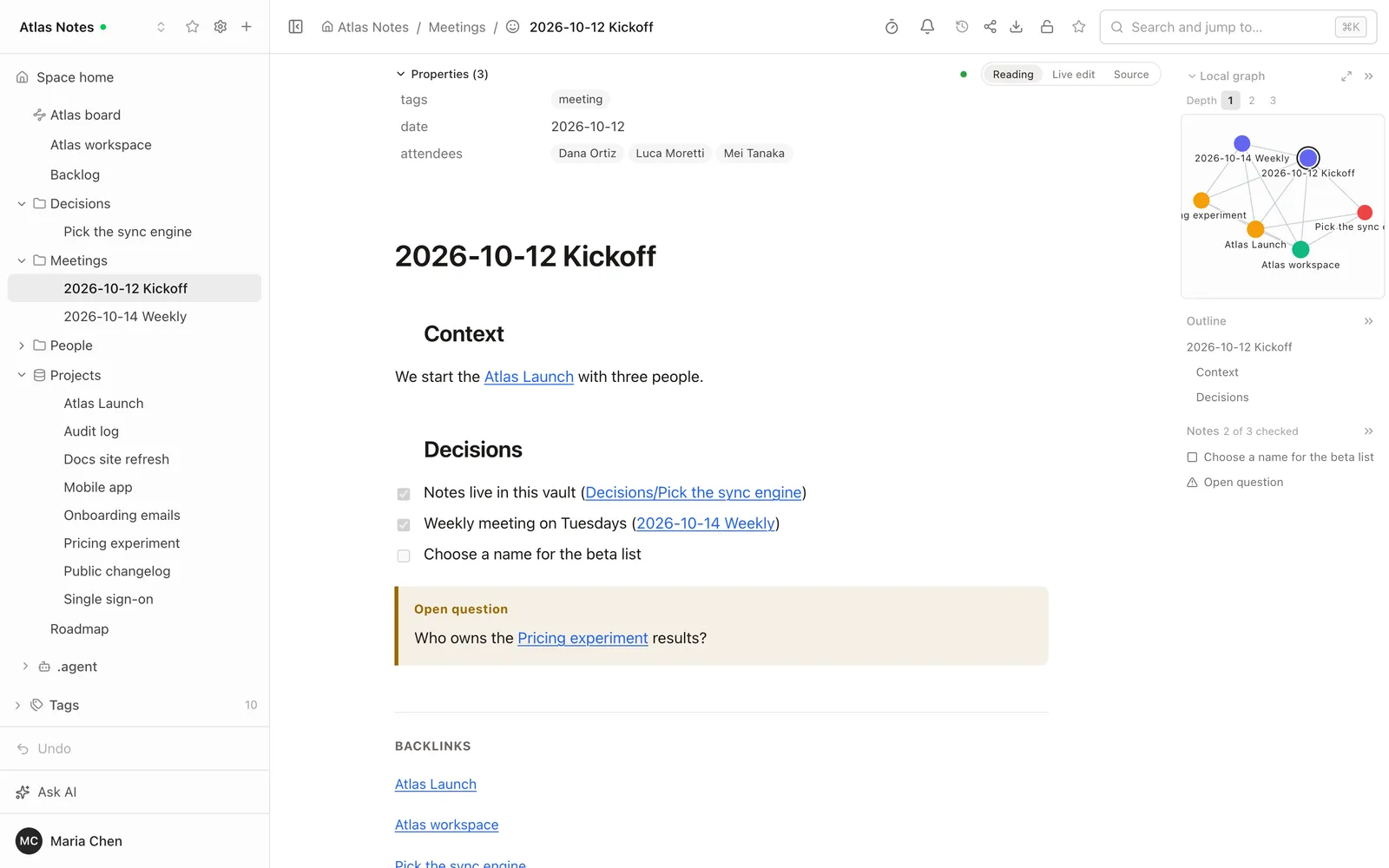
Folio 0.4 adds the views that people miss from Obsidian. The Graph row under Tags opens the space as a map, and the local graph in a page's side panel shows its neighbours. A canvas opens read-only, and "Convert to Folio board" makes an editable whiteboard from it. A base opens as a table, cards or a list, with cells you can edit in place. The graph, bases and search only ever show pages the reader may open. The 0.4 post walks through them.
If someone renames or moves a page in Folio, the wikilinks and canvas cards that point at it are rewritten in the same commit, so nothing breaks, and only the changed lines differ.
5. Keep working in Obsidian
Nobody has to give up their editor. The person who loves Obsidian keeps the vault on their own machine and syncs it through Git. The community plugin Obsidian Git does it from inside the app: install it from Community plugins, then turn on its automatic commit and sync, and automatic pull, on an interval of a few minutes. Any Git client or a short script that runs git pull and git push works just as well.
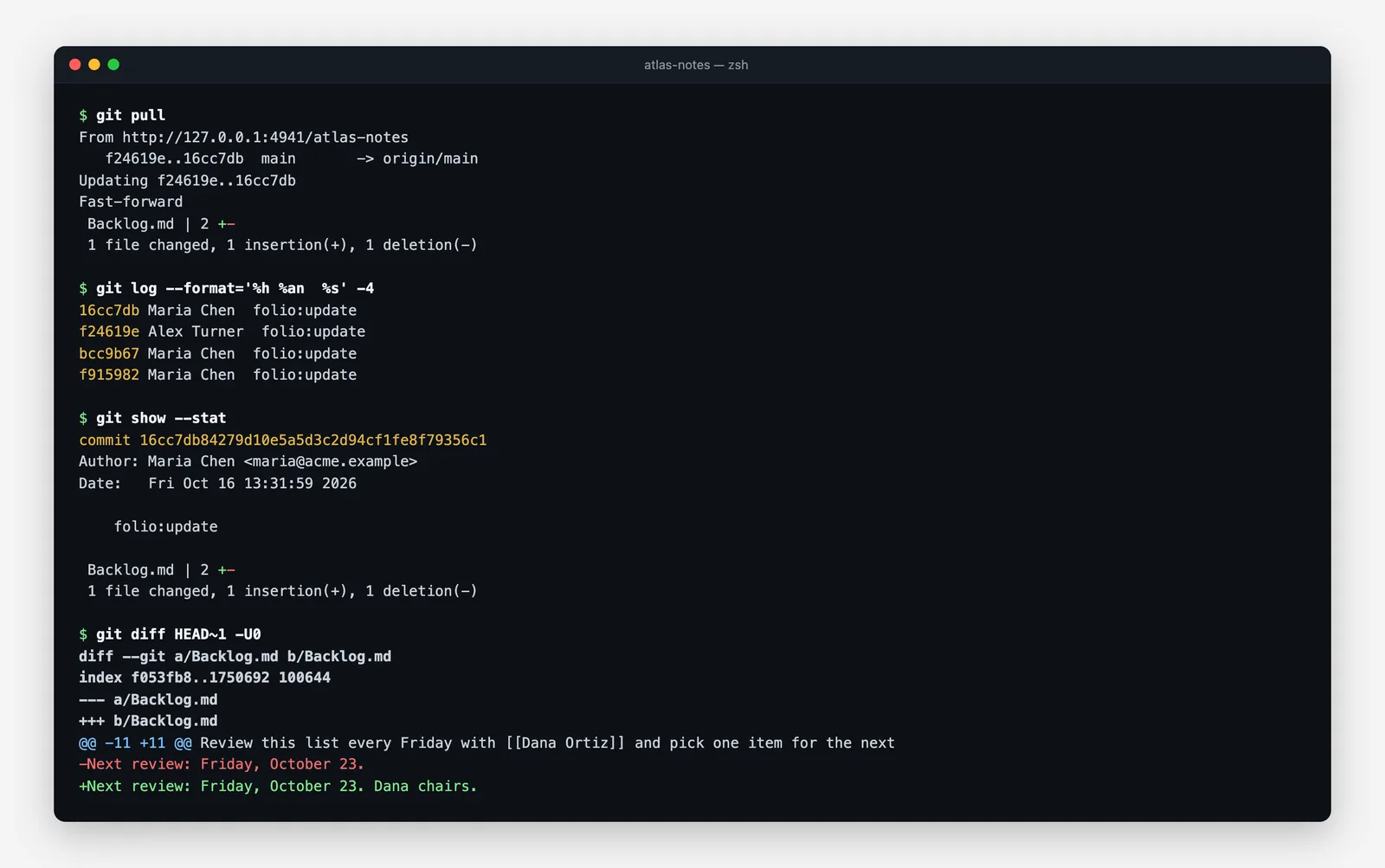
This is what happens in each direction.
- Browser to repository. Folio writes an edit to the file at once and commits after about 90 seconds of quiet in the space, or immediately on Sync. The author of the commit is the person who edited in that window, so git log shows a colleague's name and not a service account. The committer is Folio, the message is folio:update, and the push goes to the branch the space follows.
- Repository to browser. Folio fetches about every three minutes and on every sync, merges what came from the remote, and an open page picks up the merged text.
- One-line diffs. An edit changes only the lines you edited. File mode, Windows line endings and a missing final newline are kept, and front matter keys that Folio did not write are never removed.
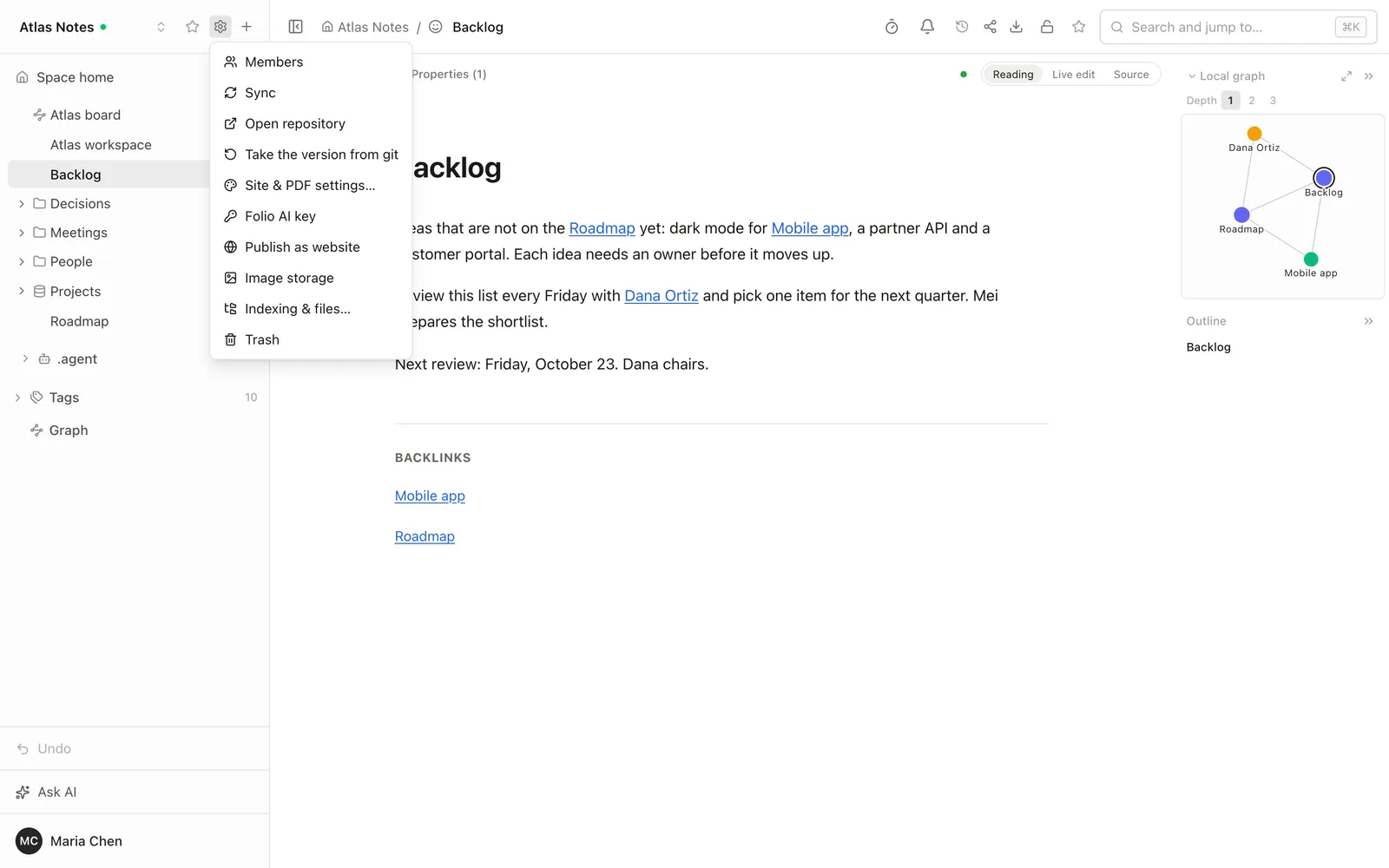
Sync is a merge, never a rebase. Edits in different places combine on their own. When a local edit and a browser edit change the same lines, Folio commits the conflict markers locally, does not push them, marks the space as Conflict and lists the files. Fix the text like any other edit, or use "Take the version from Git", which makes the space match the remote branch after saving the previous state to a folio-backup branch. Three habits keep this rare: pull before you start writing, commit often, and talk before two people rework the same note.
6. Where it stops
- Dataview and query blocks are shown as code, not run. Templater tags stay text, and community plugins and their CSS do not exist in the browser. Callout types map onto five looks.
- Obsidian markup is read, not written. The [[ picker in the editor writes an ordinary relative link, and Folio never turns your links into wikilinks. In the live editor an image embed written as ![[image.png]] shows its file name, while Reading mode, PDF and DOCX show the picture.
- Canvases are view only. You cannot add or move a card in Folio. Converting to a board loses Markdown formatting, the body of note cards and some images.
- Bases are supported in part. Kanban and map views fall back to a table, plugin functions are not supported, and a base does not reach across spaces.
- No end-to-end encryption and no offline vault. The server holds the content. Documents and whiteboards opened on a device stay editable offline, but tables, forms and uploads need a connection.
- You run the server. Folio needs PostgreSQL and Redis next to it. There is no SSO or groups yet.
The complete list is in LIMITATIONS.
Next steps
Put a copy of your vault in a repository and make a space from it. Open a few notes that use wikilinks and callouts, invite one colleague as an editor, and make one edit on each side. If something in your vault renders wrong, tell us on GitHub Discussions with the syntax that failed.
Questions
- Do my colleagues need Obsidian?
- No. They open the pages in a browser and sign in to Folio. They need no Git account either, because Folio pushes with the token saved for the space.
- Will Folio change my notes?
- Opening a page writes nothing. A vault connects with a light footprint: no id is added to any note, the bookkeeping is in one hidden file, and git status is clean after the scan. An edit changes only the lines that were edited.
- Can two people edit the same note at the same time?
- In Folio, yes: both see live cursors. Between Folio and a local Obsidian, no: the two copies meet in Git. Changes in different places merge on their own, and a change to the same lines becomes a conflict that you resolve like any other.
- Does it work with Obsidian Sync?
- Folio reads the vault from a Git repository and does not use Obsidian Sync. If you use Sync for your own devices, choose one device to commit and push to Git, and treat the repository as the copy that Folio sees.
- Which Git hosts work?
- Folio has saved tokens for GitHub and GitLab. We do not document other hosts yet.
- What does it cost?
- Folio is MIT-licensed software. You pay for your own server and, if you use the assistant, for the AI subscription you connect. Obsidian Sync is a separate paid service, and the prices are in the comparison.
- What happens to Dataview, plugins and canvases?
- Dataview and query blocks show as code and plugins do not run. A canvas opens read-only and can be converted into an editable board, and a base opens as a table, cards or a list.